
TL;DR: Cowork surfaced a prompt I hadn’t seen before, spinning a task off into its own parallel window. The real value isn’t in having many windows open. It’s in designating one of them as the control tower, the one that reads and coordinates the rest. This article breaks down how to build it and where it stops.
Today a prompt appeared in the Cowork conversation pane that I’d never seen before. It asked whether I wanted to offload the tasks I was working on into a dedicated window to run in parallel. I clicked through. A new window opened beside it, and when I stepped inside, the original request, “help me work through several things at once,” was already running there. That window became my control tower for the day: a dashboard, a BI interface, living inside Cowork.
I went back to look up what exactly this was. I went through Anthropic’s official release notes up to early July. Nothing described this prompt. It’s a strange way to learn a tool: no manual in sight, just opening the AI window and learning AI from AI.
Is the “parallel window” in Cowork a new official feature?
I don’t know (if you do, I’d genuinely appreciate hearing it). The specific prompt, the one that surfaces and suggests you spin something into its own dedicated window, has no entry in the release notes as of July 1, 2026. But the underlying capability is documented. Cowork’s official documentation describes breaking complex work into subtasks, coordinating multiple workstreams in parallel, and grouping related tasks into standalone workspaces.
The accurate framing: parallel task processing is a documented Cowork capability. The prompt that proactively suggested I push my work into a dedicated window appears to still be in a staged rollout, with documentation lagging behind. I happened to encounter it.
I don’t want to gloss over this. If you see a similar prompt someday and can’t find any official reference to it, you’re not looking in the wrong place. It just hasn’t been written down yet.
Is having many windows open enough?
No. Opening more windows turns one thread into several. What actually changes how you work is the role you assign to one of them.
On a typical day I have seven or eight threads running at once: a business white paper, a trilingual NDA revision, the site’s daily content pipeline, cross-project governance checks, a handful of meeting notes. Rather than jumping between those windows and tracking progress myself, I put the new window to work as a control tower. Its one job: read where the other windows currently stand, synthesize everything, and surface anything that overlaps or could affect something else.
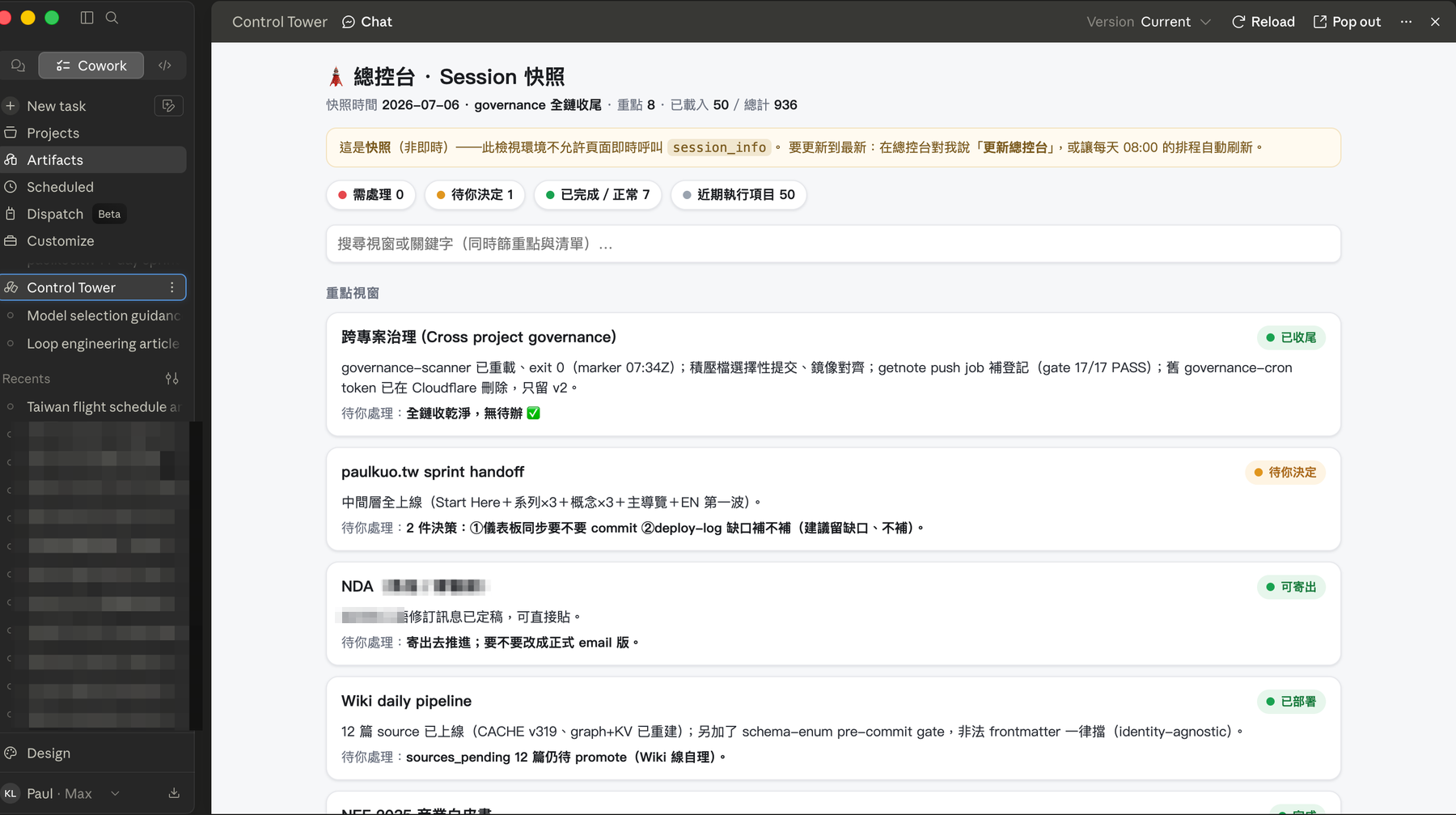
My own role shifted up one level as a result. From execution, to coordination and judgment.
What the control tower can and cannot do
This part needs to be stated clearly, because the right expectations are what make it work.
What it can do: read progress from your other windows (read-only), synthesize multiple threads into a single overview, identify when two windows are doing redundant work or work that will affect each other, and track what’s stalled and what’s waiting on you. It can also spin up its own subtask that it fully controls, or draft a precise instruction to hand to you or to another dedicated window for execution.
What it cannot do: its relationship to your other windows is read-only. It can see them, but it cannot type into them, halt them, or change their direction. Those are independent windows you opened. Touching them still requires you to go in, or to direct the AI inside that window to act.
Keep that boundary in mind and you won’t ask it to “close that window for me.” You’ll ask it to “read that window, tell me where it’s stuck, and draft an instruction I can take over.” The second request it handles well.
A real case: a monitoring schedule stalled for eight days
Something concrete will make this feel more real.
I run a background schedule whose job is to sweep system health daily and commit governance records into version control. When the control tower was reading through the other threads that day, it found that this schedule had been silently stalled for eight days, with no alerts surfacing. While it sat idle, the files that should have been archived daily just accumulated: unversioned, sixty-some of them piled up.
If I had been cycling through seven or eight windows on my own, that kind of failure, no error, just stillness, is exactly what slips through. That’s where the control tower earns its place. It puts cross-window status on the same plane. A schedule that hasn’t moved in eight days becomes visible immediately. You need it because the volume AI can run in parallel has long exceeded what any person can actively monitor. That includes me. Cognitive limits always leave blind spots. The control tower covers that side.
The resolution followed the read-only, hand-off structure. The control tower mapped the situation, confirmed the root cause, then drafted a precise instruction and handed it off to another window with write access to fix the code and version control. Once the fix was in, the control tower verified independently that it had taken hold, then marked that thread closed. The coordinator, the executor, and the verifier occupied separate seats, all directed by one person.
How to build a control tower yourself
You don’t need to wait for that official prompt. You can build the same setup manually right now. I didn’t design this in advance; I assembled it in real time that day, potholes included, and I’ll describe those too.
One prerequisite worth naming before you start, so you don’t hit it mid-setup: I’m on Max 20x. Cowork is available on every paid plan, Pro included, with no features locked to higher tiers. But running several windows in parallel all day, with one continuously reading the others, is quota-intensive. Anthropic’s own documentation notes that Cowork consumes quota faster than standard chat and recommends upgrading for heavy use: Pro’s quota is sized for shorter tasks. Running at this intensity for a full day practically requires Max. Start with Pro to get a feel for it, then decide whether to upgrade.
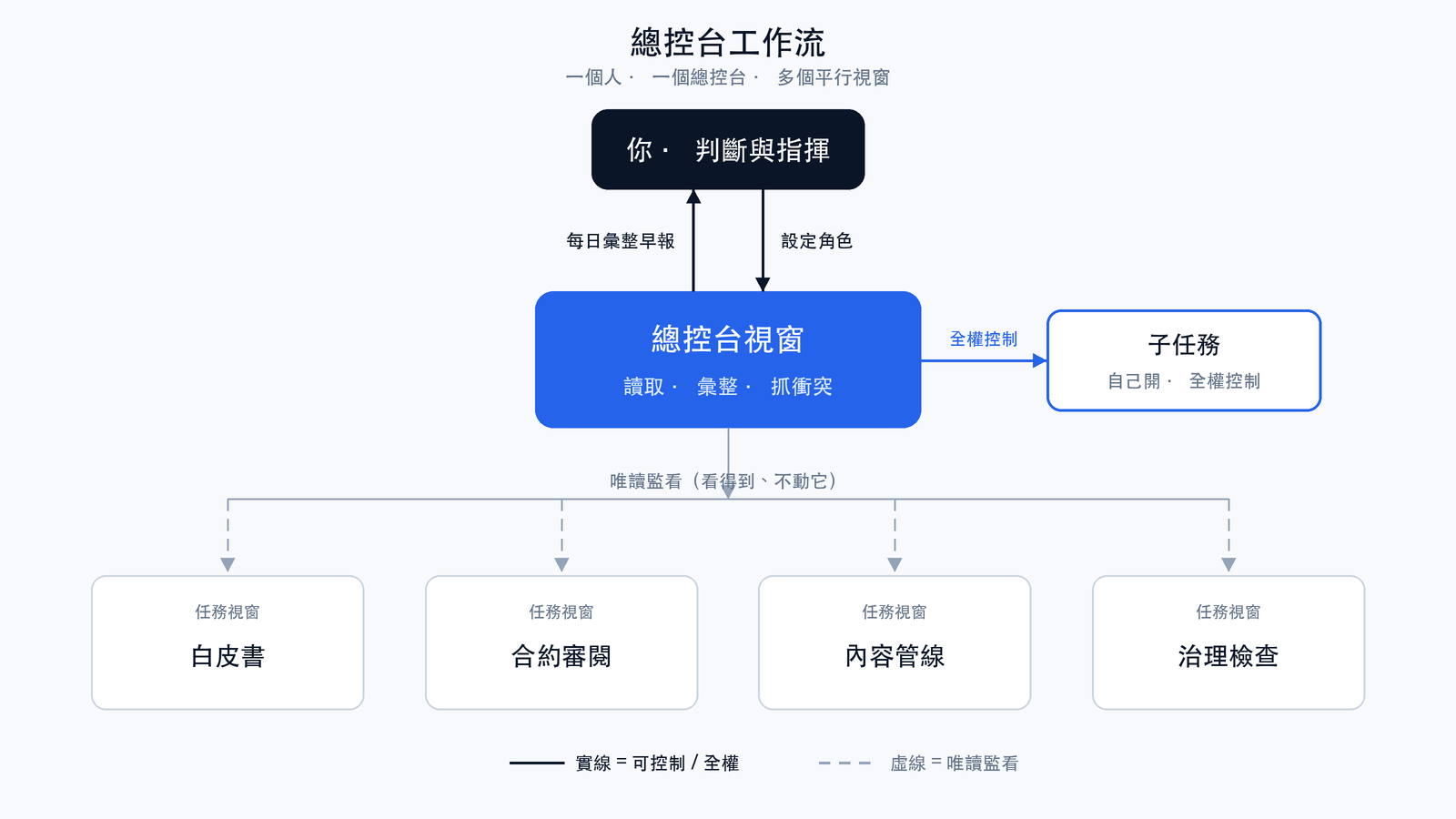
Why this works at all: this feature gives the control tower visibility into the progress of other windows. Previously each window ran in isolation, invisible to the others. With this, the control tower can synthesize, compare, and catch conflicts. That cross-window layer is what makes coordination possible.
Step one: open a separate window for each independent thread. Independent is the operative word. Don’t split tasks that will step on each other.
Step two: designate one window as the control tower. Give it its role explicitly: read the other windows, synthesize and report back, surface overlaps and conflicts, but do not touch them. Hold that read-only line.
Step three: schedule the daily synthesis. I set mine for 8 a.m. Here’s a pothole I hit the first time: if you ask it to read only windows that are “currently running,” it comes back empty most of the time, because each cycle is short and rarely is any window actively mid-run at any given moment. Change the instruction to read windows that have “had recent activity” and the morning brief has substance.
Step four: if you want a visible dashboard, have the control tower render each window’s status as a persistent page, what Anthropic calls a Live Artifact. A pothole here: Live Artifacts can pull live data from connectors like Notion, Slack, and Google Sheets. But the thing I wanted to read live, the progress of other windows, isn’t a source that artifacts can pull from in real time. My first version failed immediately trying to do that. I stepped back and shifted to a snapshot model: pull the data, bake it into the page, let the page handle display. Updates come from a manual prompt or a scheduled one. Once you know it’s a snapshot rather than a live feed, you stop waiting for a screen that was never going to update itself.
With this in place, the time you spend asking “where does this actually stand right now?” drops noticeably. That time was being eaten by window-switching.
Standing where you can see the whole field
That prompt will probably get a proper name and a documentation entry within a month or two. But the workflow doesn’t have to wait for that.
What’s in short supply isn’t more models or more tools. It’s a position from which scattered progress converges: one place to see what’s stalled, what’s moving, and what’s ready for a decision.
That position can be held by an AI window. It sorts, tracks, and surfaces what’s dispersed. You step back slightly and save your attention for what matters more: which thread to advance first, which conflict needs handling, which output is ready to move forward.
This is the concrete shape of what I keep calling the “Solo Operator”: one person keeping ten threads running, with final judgment staying in human hands.
I wrote about a similar structure in another piece on rebuilding redundancy after a GitHub suspension. Simone Weil wrote: “Attention is the rarest and purest form of generosity.” Brought into a workflow: tools can accelerate, but what actually matters is giving attention somewhere to land, keeping judgment from being ground down by fragmented tasks.
Anthropic built this well. Being able to coordinate multiple window-based workflows from inside a single window is genuinely useful. The model capabilities keep advancing, and the interface keeps becoming more accessible. This is probably what an “AI management system” looks like in its early form: you sit in front of one window and direct dozens, eventually hundreds, of agents. Today we’re coordinating a handful of threads. Follow this path far enough, and what you’re managing is an entire agent team.

💬 Comments
Loading...