
Bottom line first: Keep the recording card running all day and review in two passes. Right after important meetings, export a Markdown file from the app and process it immediately. Everything else syncs when you get home in the evening, and AI compiles “yesterday” into highlights and follow-up items the next morning. If you need to look at a specific meeting in detail, pull the transcript by time window. Popular techniques you’ll see online, like MARK tags and the daily journal feature, fit naturally into this same flow. If you’d rather not deal with any technical setup, the app alone covers most of the value. For those who want to connect their own AI, the Get Notes open platform offers three integration paths.
Friends have been asking how I use the recording card. Enough people have asked that I figured I’d write it all up in one article and share the link with friends.
I started using the GetSeed recording card from Dedao in late February 2026, and by early November I had accumulated around 800 recordings. For the first eight months I recorded selectively: meetings, conversations, online live streams. Starting in early November, I switched to keeping it on all day and reviewing in two passes. Important meetings get processed on the spot; everything else syncs in the evening and a summary arrives the next morning.
Two things make all-day recording worth it. First, I no longer have to decide in the moment whether something is worth recording. Second, any session can be pulled up by time window whenever I need it.
What Is the GetSeed Recording Card?
GetSeed is an AI recording card from Dedao (Beijing Siwei Zaowu). The card handles audio capture; transcription and summarization happen in the companion phone app. The app was originally called “Get Notes” (Get笔记) and has since been renamed 得到大脑 (“Dedao Brain”); on the App Store it appears as “得到大脑(原Get笔记)” (App Store). This article keeps calling it the Get Notes app.
When the card arrived on February 26, I briefly wondered whether MJ Lin had sent it as a gift. The build quality is genuinely good, the design is considered, and the accessory kit is generous (Facebook post).
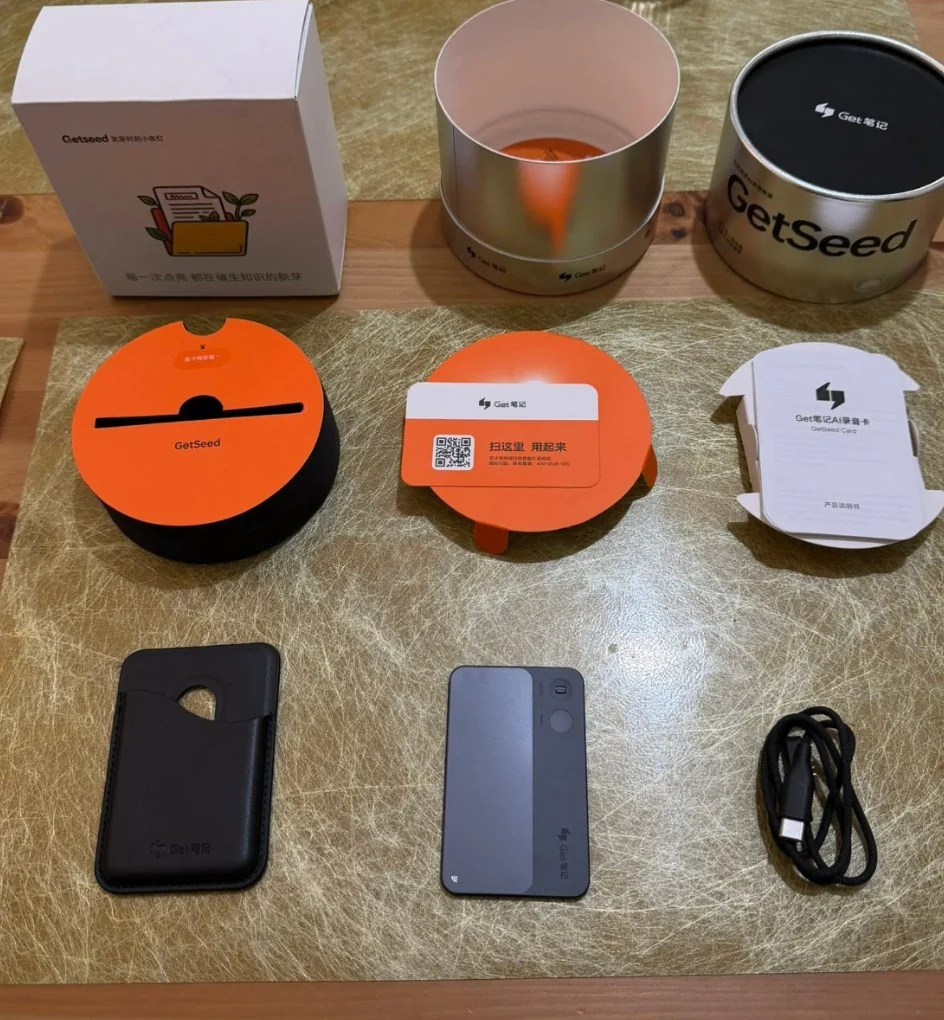
My unboxing photo with everything laid out. The card itself is in the bottom center, the sleeve is on the left, the charging cable on the right (February 2026).
The card is 3.1 mm thick and attaches to the back of a phone. Specs relevant to all-day recording (official documentation, product overview):
- A flick of the physical switch starts recording without unlocking your phone. Incoming calls do not interrupt recording.
- Up to 35 hours of continuous recording, 60 days of standby, 64 GB of built-in storage. No internet required to capture audio; it syncs later.
- Three microphones, rated for pickup up to 8 meters. The app distinguishes between speakers during transcription.
- Transcription quota: paid members get unlimited minutes after syncing the recording card; the free tier gives 600 minutes per month (Sspai, March 2026). The current paid plan is called 得到大脑会员 (the Get Notes membership); check the app for the current quota.
Recordings only become transcripts and summaries after they sync to the app. So for important meetings, I sync immediately and export that session as a Markdown file. Everything else waits until the evening sync.
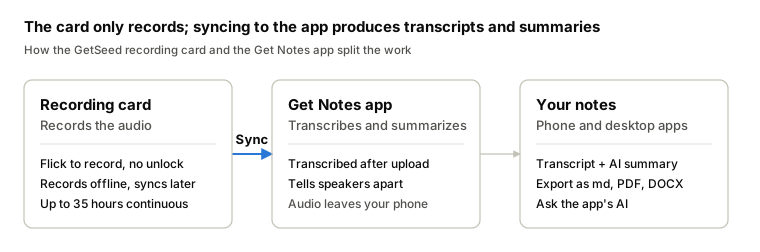
That middle step uploads audio to the Get Notes cloud. I’ll come back to that in the section on what to know before you start recording.
Where Do Common Use Cases Fit?
Looking at Chinese-language reviews and writeups, most use cases fall along a single line: record, mark, review after the meeting, reflect daily, retrieve as needed, then connect AI. My approach follows the same line, with the review step split in two. The second column in the table below shows what you typically see online; the third shows how each step fits into the two-pass framework.
| Step | Common approach online | In this two-pass workflow |
|---|---|---|
| Record | Record meetings, classes, talks; phone calls and many online meetings also captured (product overview) | Keep it on all day; stop deciding which meetings are worth recording |
| Mark | Short-press MARK at key moments for AI to summarize around; long-press MARK to speak a quick note, released and saved as a memo (WOSHIPM) | Marks sync along with notes and are readable via the open API; useful for finding the most important parts when reviewing |
| Post-meeting review | Read the app’s summary; recordings from the card, meetings, and classes can generate an auto-formatted infographic (App Store release notes) | For important meetings, export a Markdown file on the spot right after the meeting ends. This is the first pass. |
| Daily review | In the evening, the app’s AI assistant (“Xiaobu”) turns the day into a journal entry (App Store release notes; earlier called “AI Lyubishchev,” see Sspai) | Sync via API in the evening, read the AI summary the next morning. This is the second pass. |
| Retrieve as needed | Ask the app’s AI, which answers from your notes (App Store); copy a transcript in “original version” and paste it to an AI (WOSHIPM); have AI turn ideas into publishable posts (app listing) | Pull the transcript for a specific time window and turn it into meeting notes |
| Connect AI | Install the official Skill and ask something like “what did we cover in that last meeting?” inside Claude Code or similar (Sspai) | The open platform offers three integration paths; I use the API, detailed below |
Some reviews throw cold water on it: a two-hour meeting recording can feel so daunting that you never go back to it, turning it into dead data no one touches (WOSHIPM). The two-pass structure addresses this. Important meetings are processed right away; everything else gets a summary the next morning, so you rarely need to re-listen to anything in full.
My Setup: Record All Day, Review in Two Passes
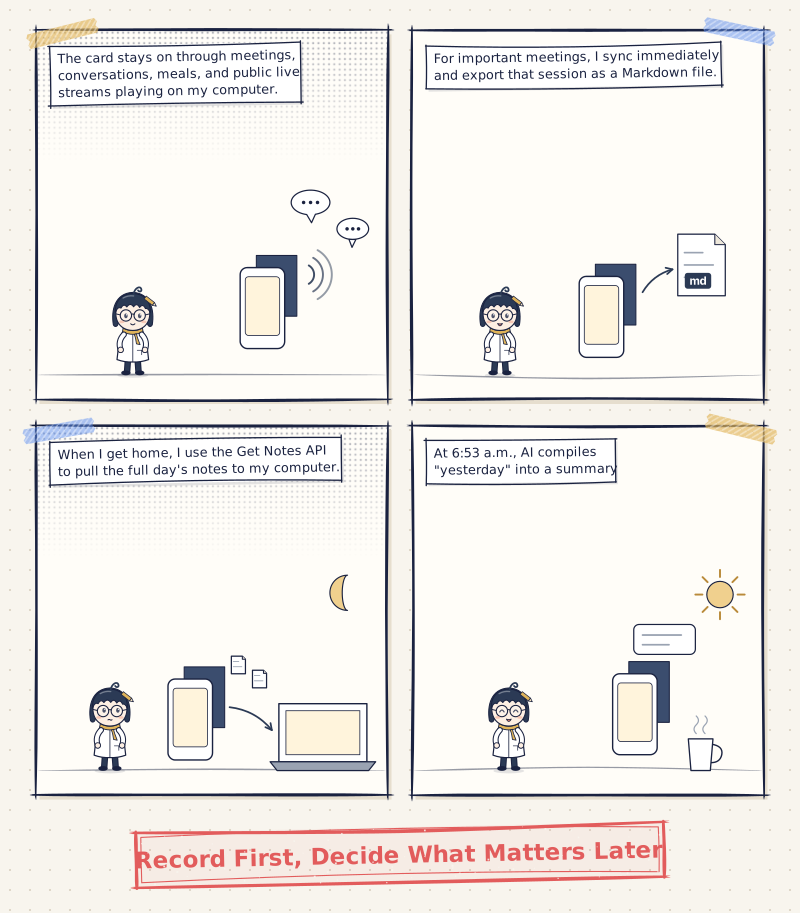
The recording card stays on all day. Review happens in two passes: important meetings get processed immediately, and everything else gets pulled in that evening via API.
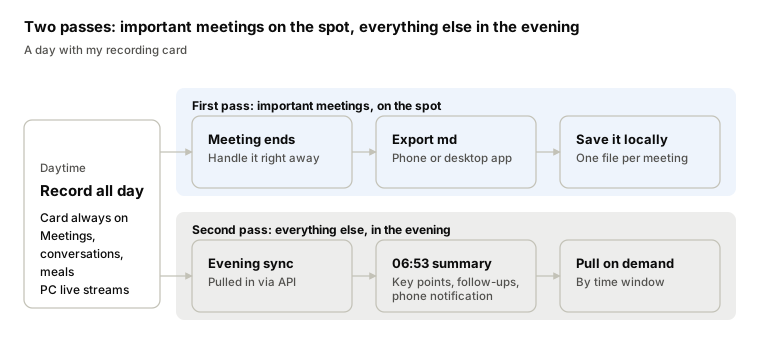
The top path is the first pass, handling important meetings immediately. The bottom path is the second pass: the full day’s recordings sync in the evening, and a summary arrives the next morning.
Record all day. The card stays on through meetings, conversations, meals, and public live streams playing on my computer. I no longer judge which sessions are worth capturing, because there’s a summary waiting the next morning anyway.
First pass: right after important meetings. As soon as a significant meeting ends, I sync the recording card to the app, then export that session as a Markdown file from the Get Notes app on my phone or computer, and save it locally. That meeting doesn’t wait until the evening. To export: open the recording’s note, tap the menu in the top-right corner, tap “导出” (Export), then “导出 Markdown.” Members can also enable “去水印导出” to export without the Get Notes watermark.
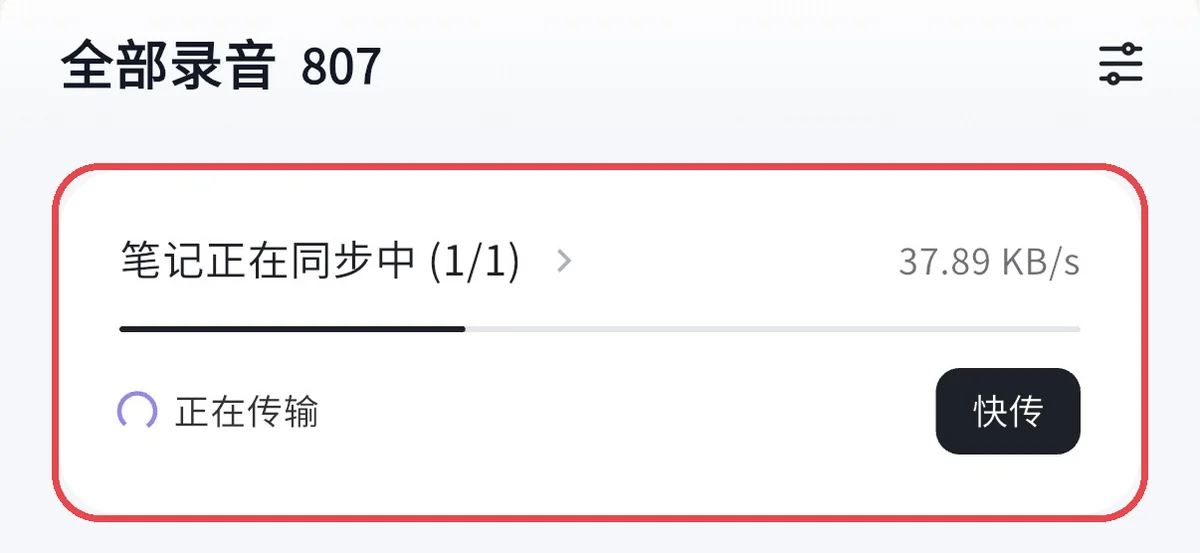
While syncing from the recording card to the app, a progress indicator appears above the recording list (screenshot excerpt).
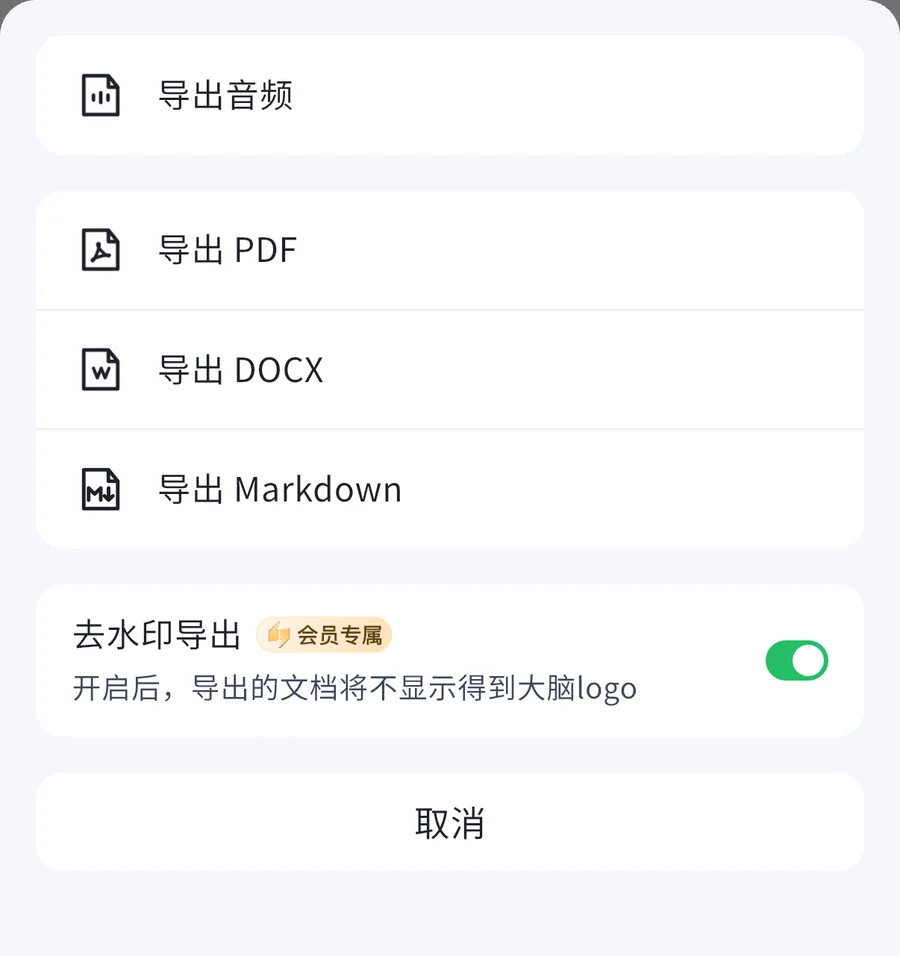
The Get Notes app export menu (screenshot excerpt).
Second pass: evening sync. When I get home, I sync the card to the app, then use the Get Notes API to pull the full day’s notes to my computer. My computer runs an automatic pull at 8 p.m.; I can also trigger it manually if I want it earlier. The API integration details are in the “Three Ways to Connect Your Own AI” section below.
Morning review. At 6:53 a.m., AI runs one more sync and then compiles “yesterday” into a summary: total number of segments, start and end times for each, topic and participants, three to six key points per segment, and a list of follow-up items. A one-line notification arrives on my phone; the full text stays in the scheduled conversation window, with a copy saved to a folder.
Retrieve on demand. When a session in the summary needs formal meeting notes, I tell the AI something like “turn the 3 p.m. meeting yesterday into meeting notes.” It slices out the transcript for that time window and formats it accordingly.
This rhythm settled into place in early November. After seeing how accurate and usable the November 5 summary was, I decided I wanted one every day.
How to Pull a Transcript for a Specific Time Window
One meeting often spans several recording segments. A meeting I had in early November, for example, was split into two segments: 15:04–15:33 and 15:33–17:13. When I say “15:00 to 17:15,” the tool needs to find both segments and join them.
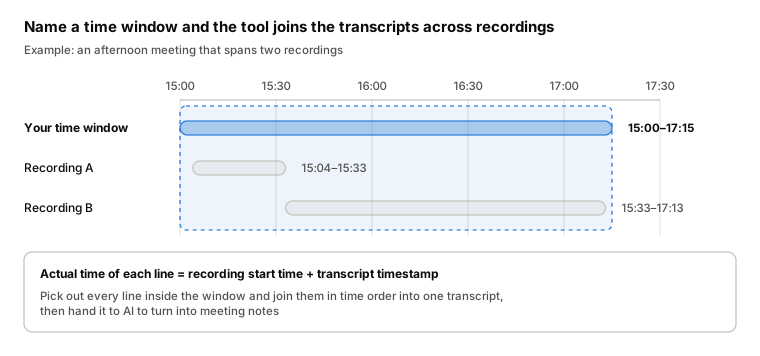
The dashed box is your requested window; the tool selects the transcript segments that fall within it and joins them into one document.
Each recording segment stores its start time, and the transcript includes a timestamp for every sentence, such as [00:42:10] for 42 minutes and 10 seconds after the recording began. Adding those two values gives the actual clock time for each line. I had Claude write a small tool that takes a date and time range, identifies which segments fall within it, and joins their transcripts into one document. The tool reads only local files, has no network access, and does not modify the original notes.
You can do this without the tool by opening the relevant segments in the app, copying the transcripts, noting the start time of each segment, and giving them all to an AI with instructions to focus on the window you want. Without the start times, the AI only sees offsets from the beginning of each segment and cannot calculate actual clock times.
If you have the official command-line tool installed, you can also run getnote note transcript <note ID> to print the transcript for any individual recording (official documentation).
The Three Most Common AI Summary Mistakes
The most frequent failure is speaker attribution. Proper nouns and times are next. Three specific problems I’ve run into:
- “The recorder” is not necessarily you. The app’s AI summary labels one person “the recorder” and includes “my speaking highlights,” but it identifies this by who spoke the most. I’ve had sessions where the “recorder” in the summary was actually the other person. Before reading a summary, confirm who is who.
- Speakers are numbered, not named. Transcripts label participants “Speaker 1,” “Speaker 2,” and so on. I tell the AI upfront who the common participants are and their roles, then ask it to infer names from forms of address and context, marking any inference as such. People often call me 郎哥 (“Lang-ge”), but speech-to-text often turns it into 南哥 (“Nan-ge”) or the homophone 狼哥. So I explicitly tell the AI: if you hear these forms of address, that’s me.
- Proper nouns and times get garbled. Taiwanese Mandarin often merges the “n” and “l” sounds, which causes frequent errors in proper nouns. Summaries sometimes turn “12 o’clock” into “December.” When something looks off, check the original transcript.
The official command-line documentation makes the same point: when you need the actual words spoken, use the transcript command. Don’t treat an AI summary as the source text (official documentation).
The app also supports voice-print recognition, which lets the AI learn a specific person’s voice and identify them automatically going forward. As of the April 2026 version, it supports up to five voice prints (App Store release notes). This is worth setting up for people you meet with regularly, but ask them first.
To set it up, go to “我的账号” (My Account), tap “常用操作” (Quick Actions), then “声纹识别” (Voice Print). Enable “启用声纹标记” (members only), then record samples for yourself and regular participants. You can also add a voice print by tapping a speaker label directly inside a recording note.
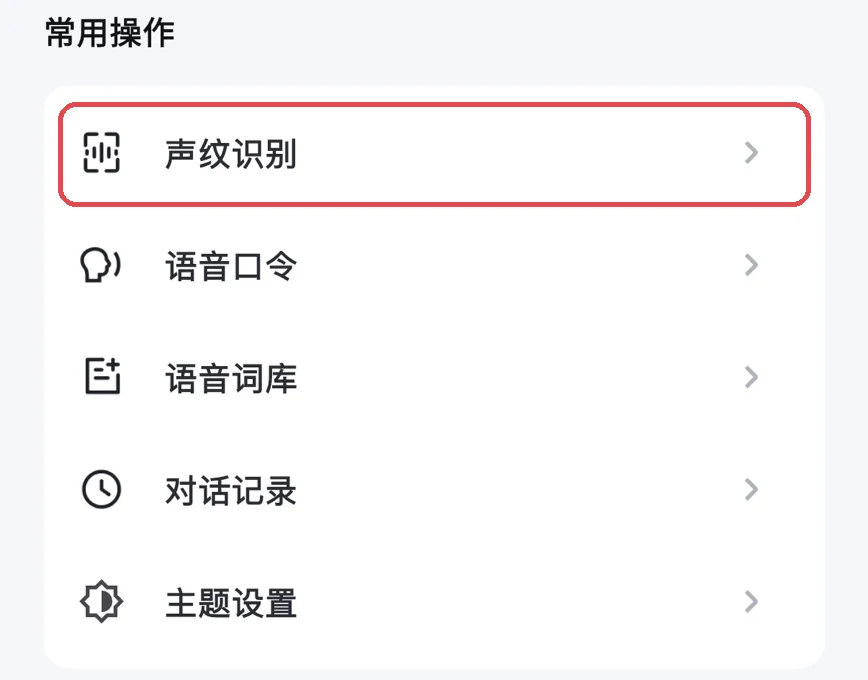
The “Quick Actions” section on the My Account page (screenshot excerpt).
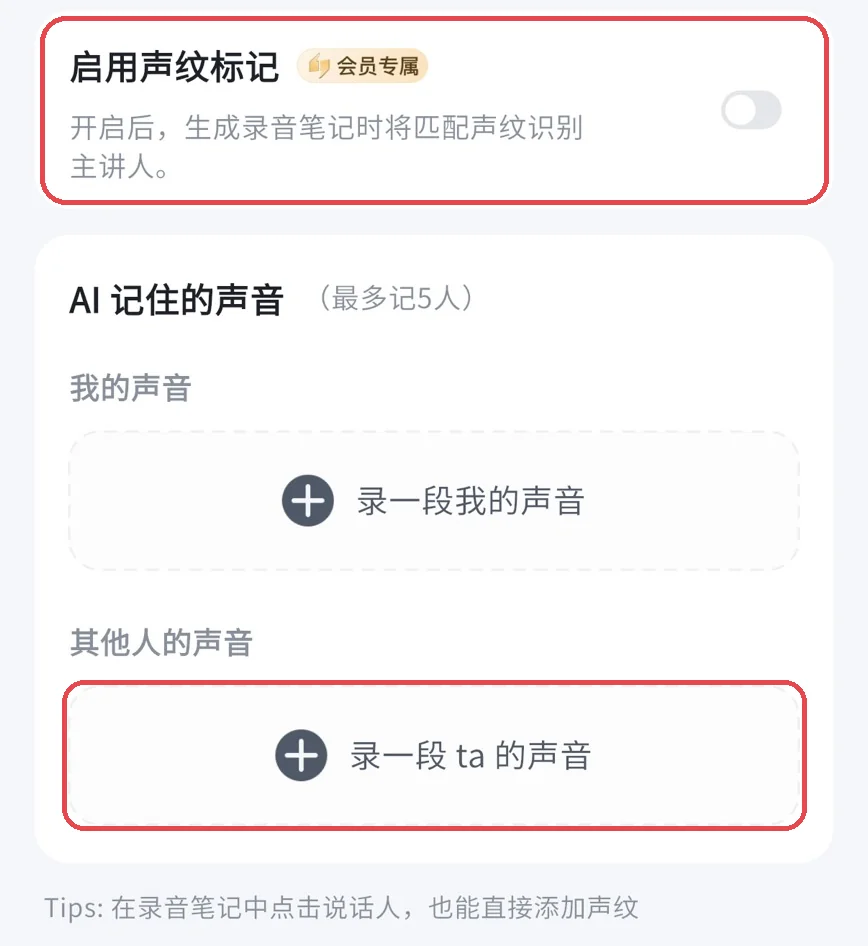
The voice print setup page: enable the toggle first, then record a sample (screenshot excerpt).
Three Ways to Connect Your Own AI
My evening sync runs through the Get Notes open platform. The platform provides three integration options: a Skill and command-line tool (CLI) for AI tools that can run commands, an MCP connector for AI apps that support custom connectors, and an OpenAPI for writing your own scripts. All three require a Get Notes membership; a personal account without one can’t call any of them (official documentation).
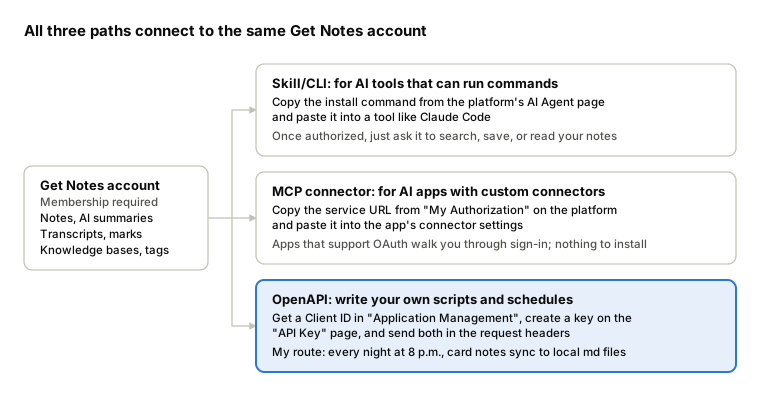
All three paths read from the same account. The difference is who makes the call: an AI tool, an AI app, or your own script.
| Integration | Best for | How to start |
|---|---|---|
| Skill / CLI | Already using Claude Code, Codex, Cursor, or similar AI tools that can run commands | Go to the “AI Agent” page on the open platform and hand the install command to your AI tool. To install manually: npm install -g @getnote/cli@latest && getnote setup, then authorize in a browser. |
| MCP connector | Using an AI app that has a “custom MCP” or “connector” entry point | Go to “My Authorization,” copy the service URL, paste it into the app’s connector settings, and authorize. No code installation needed. |
| OpenAPI | Writing your own scripts or scheduled tasks | Go to “Application Management” to create an app and get a Client ID, then go to “API Key” to create a key. Include both in request headers. |
I tested the MCP path with Claude in November 2026. After adding a custom connector in Claude and entering the service URL, the default “auto-register” option fails to connect. The fix is to first register a client with Get Notes, then in Claude’s connector settings choose “Use your own OAuth client,” enter the client ID you received, leave the secret blank, and complete the authorization. After that, Claude can read your notes.
The registration command:
curl -X POST https://openapi.biji.com/oauth/register \
  -H 'Content-Type: application/json' \
  -d '{"client_name":"Claude","redirect_uris":["https://claude.ai/api/mcp/auth_callback"],"grant_types":["authorization_code","refresh_token"],"response_types":["code"],"token_endpoint_auth_method":"none"}'
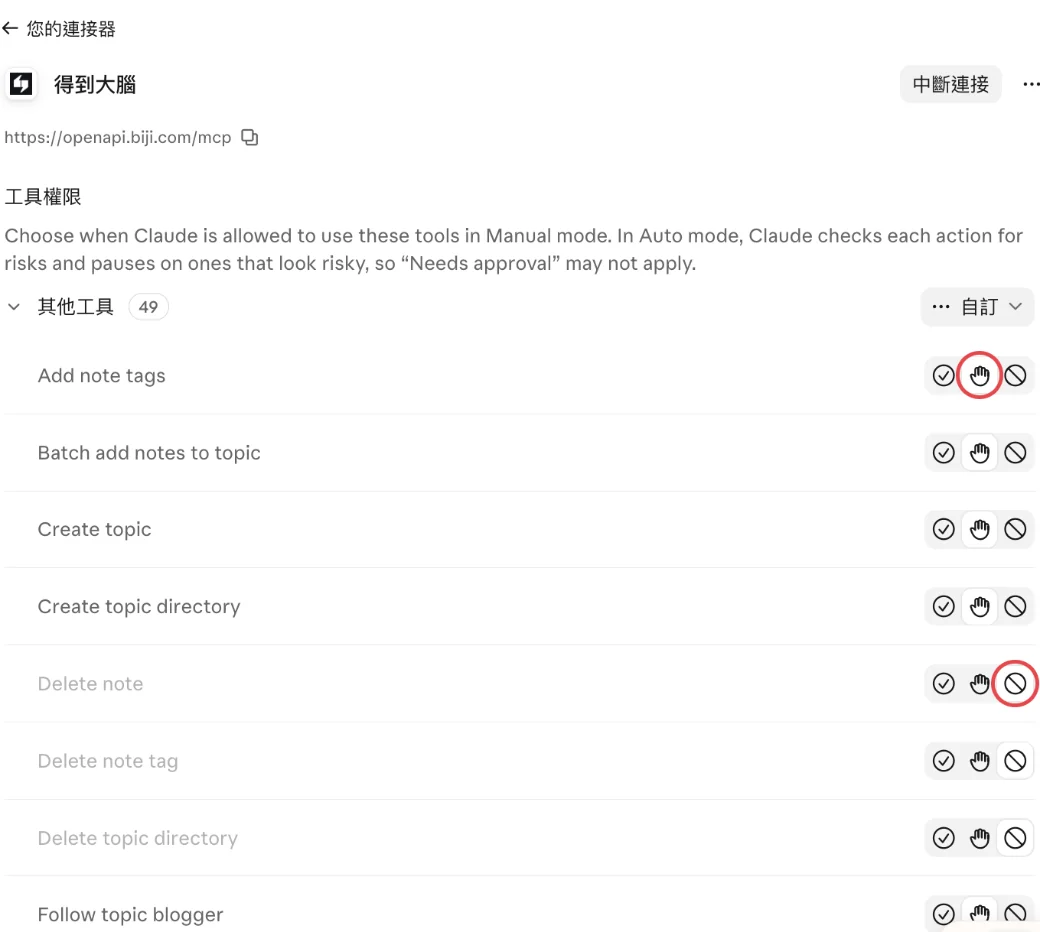
The client_id in the response is what you paste into Claude. Once connected, Claude’s connector settings page will list 49 tools, and you can configure each one individually. For tools you’re not comfortable with, like deleting notes, set them to blocked.
My own configuration: 33 read-only tools are always allowed; delete note, delete tag, delete knowledge base directory, and share note are blocked; the remaining 12 write-capable tools require approval. The settings page also notes that in automatic mode Claude makes its own risk assessment, and “requires approval” may not always trigger a prompt. For anything you genuinely don’t want it to do, choose blocked.
I use the third path myself. Every night at 8 p.m., a script on my computer pulls that day’s recording card notes via API and saves both the AI summaries and transcripts as Markdown files locally. The morning summary and time-window transcript retrieval both read from those local files. I wrote about the broader knowledge pipeline behind this in A Knowledge Management Pipeline.
If you’d rather not write code, there’s a ready-made option: the Obsidian plugin GetBiji uses the official API. Enter your Client ID and API Key, and it pulls any unsynced notes directly into your vault.
The quick-start example from the official documentation, confirming the connection is working:
curl 'https://openapi.biji.com/open/api/v1/resource/note/list' \
  -H 'X-Client-ID: cli_xxx' \
  -H 'Authorization: gk_live_xxx'
Note: the API key goes directly in the Authorization header without a “Bearer” prefix.
The API endpoints most relevant to recordings:
- Note list and note detail: Recording card notes appear here. The detail response includes the AI summary and the full transcript with speaker labels and timestamps.
- Read recording marks: The MARK timestamps you created during recording.
- Semantic search (called “semantic recall” in the docs): Search all notes or a specific knowledge base with a natural-language query. No result doesn’t mean it isn’t there; rephrase and ask again.
- Check quota: Both read and write operations have daily and monthly limits, resetting at midnight Beijing time.
A few things to know before you start:
- An API key is only shown in full once. Save it the moment you create it. Treat it as equivalent to your account credentials. Never put it in front-end code or push it to Git.
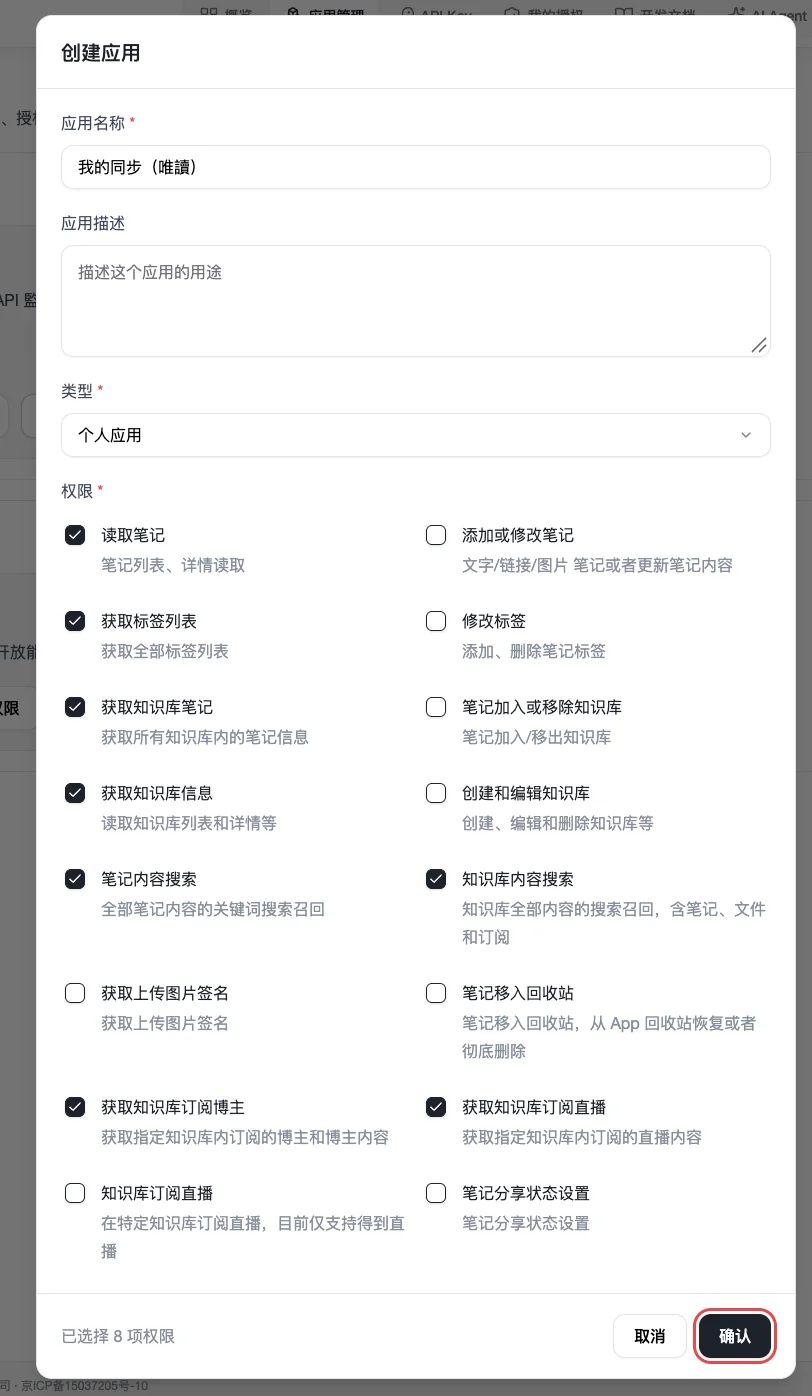
- You can enable only the permissions you need. In the console’s “应用管理” (Application Management), create your own app and choose which of its 16 permissions to enable; keys are bound to that app. The platform’s built-in app has all permissions enabled. My sync script uses a read-only key; write attempts are rejected. A separate key for the write-capable scheduled task can create notes but cannot delete or share them.
- Keys have their own expiration dates. These are separate from your membership expiration. Renew keys in the platform console before they expire.
- The recording-card-specific APIs require enterprise authorization. The “Recording Card Note” API and event push endpoints listed in the documentation are not accessible with a personal key; calls return a permissions error. This isn’t a problem in practice, since recording card notes appear in the standard note list and transcripts are fully accessible there.
- Quota is shared across the entire account. Multiple keys and multiple tools connected to the same account all draw from the same pool. My paid account shows a read quota of 20,000 requests per day in the platform console.
- Think carefully before granting authorization. Permissions issued via MCP or Skill allow reading, editing, deleting, and sharing your notes. Grant access only to applications you trust (official documentation). Avoid adding a note-capable AI to a group chat, or others in the chat may be able to query your notes (official Skill documentation).
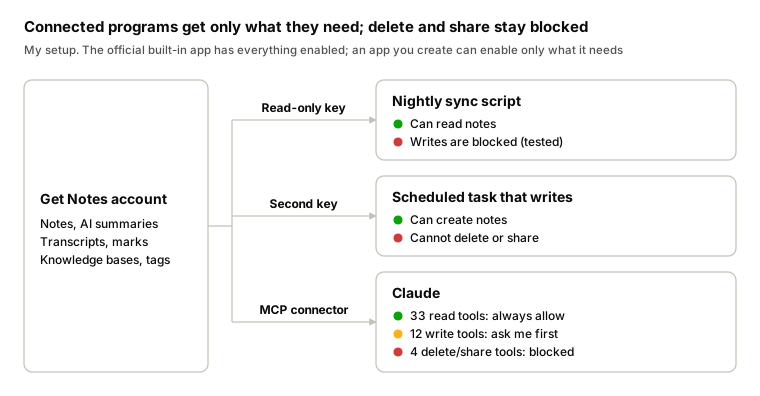
The two walkthroughs below cover connecting Get Notes to Claude and creating a read-only API key.
Walkthrough: Connecting Get Notes to Claude
The screenshots below are from the Claude web app on a Pro or Max personal plan, taken in November 2026. Before starting, run the registration command above to obtain a client_id.
Step 1: Open connector settings. Go to Claude Settings, click “Connectors” under “Customize” in the left sidebar, then click “Add” in the top-right corner and select “Add custom connector.”
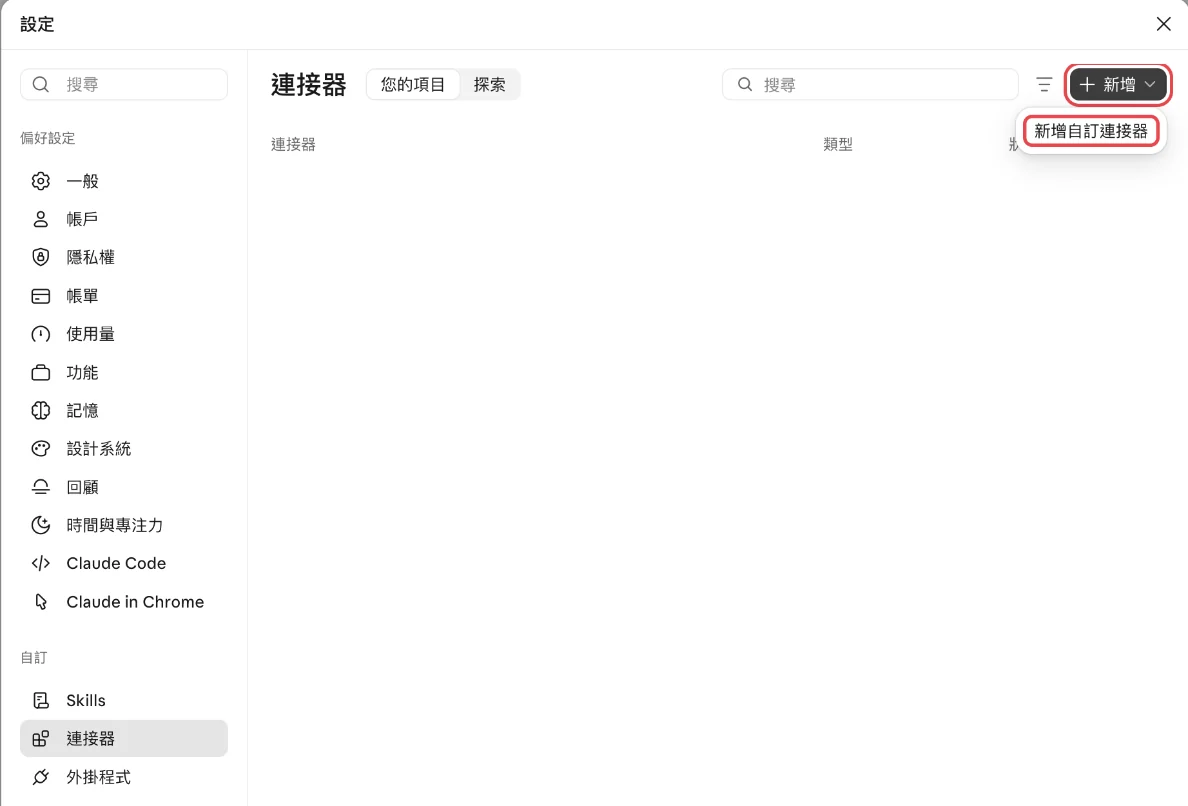
Step 2: Enter a name and URL. Choose any display name, such as “Get Notes.” Enter https://openapi.biji.com/mcp as the URL and click “Continue.”
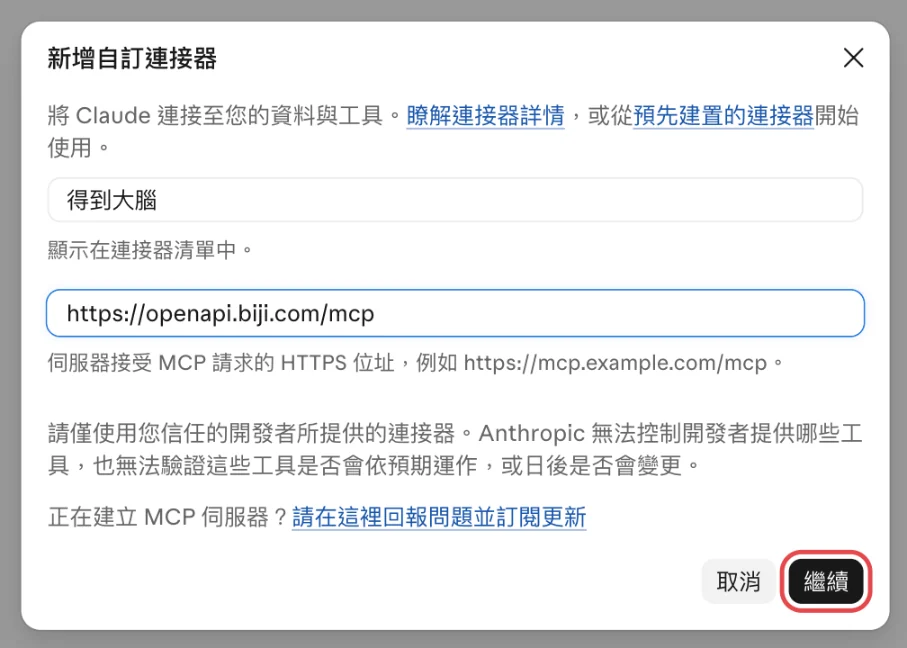
Step 3: Use your own OAuth client. The next screen shows authentication settings. Skip the default auto-registration option and choose “Use your own OAuth client.” Paste your client_id into the client ID field, leave the secret blank, and click Continue. I can no longer bring up this screen on my account since it’s already connected, so there’s no screenshot here. The Claude Help Center also confirms that you can supply your own OAuth client ID at this step (official documentation).
Step 4: Authorize in Get Notes. Your browser will open the Get Notes authorization page. Click “授权” (Authorize), then “确认授权” (Confirm). Return to Claude, and Get Notes will appear in your connector list.
Step 5: Configure tool permissions. Click “Get Notes” in the connector list and scroll down to “Tool permissions.” Each tool has three icons on the right: a checkmark for always allow, a hand for requires approval, and a blocked symbol for block. Tools are listed alphabetically; anything starting with Get, List, or Recall is a read operation.
Walkthrough: Creating a Read-Only API Key
The screenshots below are from the Get Notes open platform, taken in November 2026, with the Client ID obscured. A read-only key is sufficient for any script that only needs to read notes, such as a nightly sync.
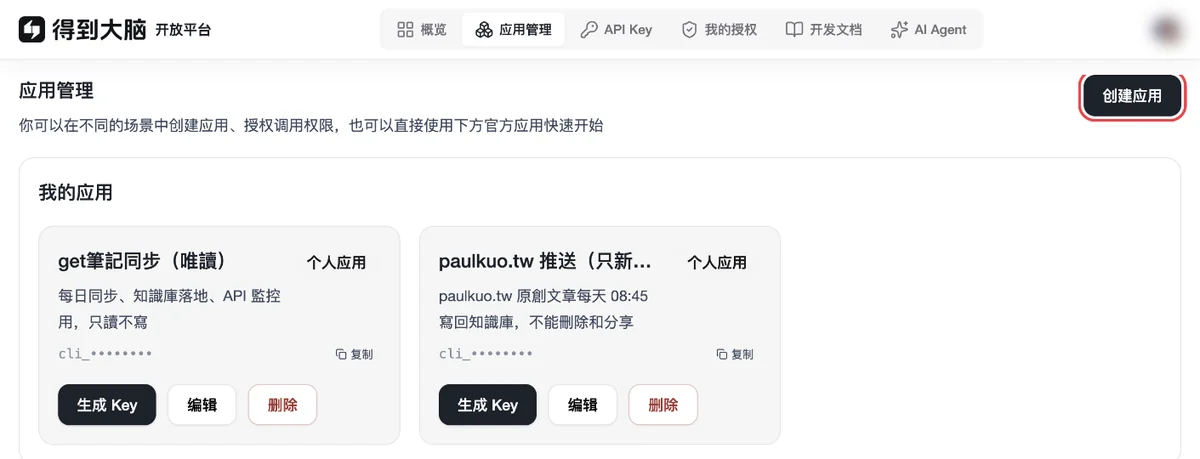
Step 1: Create an application. Sign in to the open platform, click “应用管理” (Application Management) at the top, then click “创建应用” (Create Application) in the top-right corner.
Step 2: Select read-only permissions. Give the application a name, leave the type as “个人应用” (Personal Application), and check only the 8 read-only permissions shown in the screenshot. The count at the bottom should read “已选择 8 项权限” (8 permissions selected). Click “确认.”
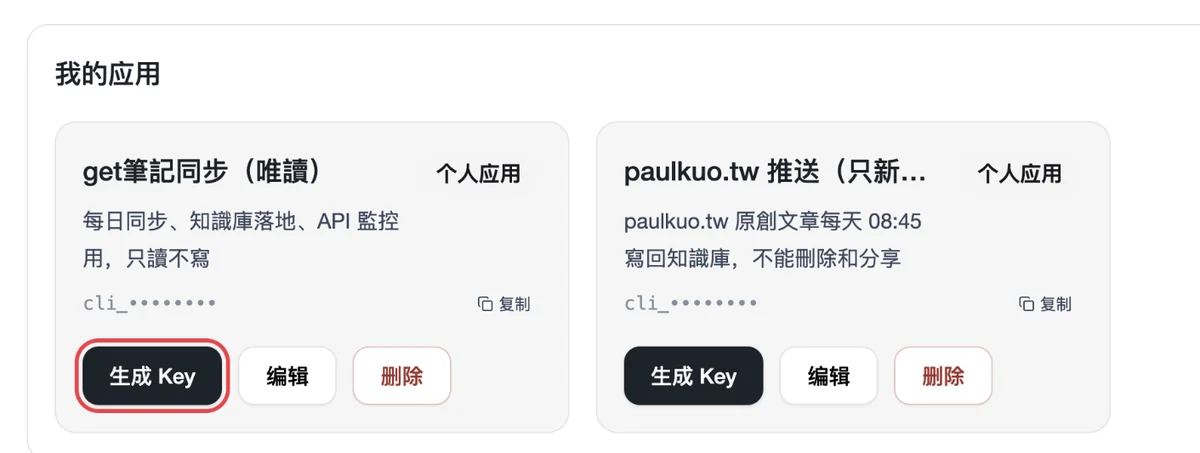
Step 3: Generate a key. Go back to “我的应用” (My Applications), find the card for the application you just created, and click “生成 Key.”
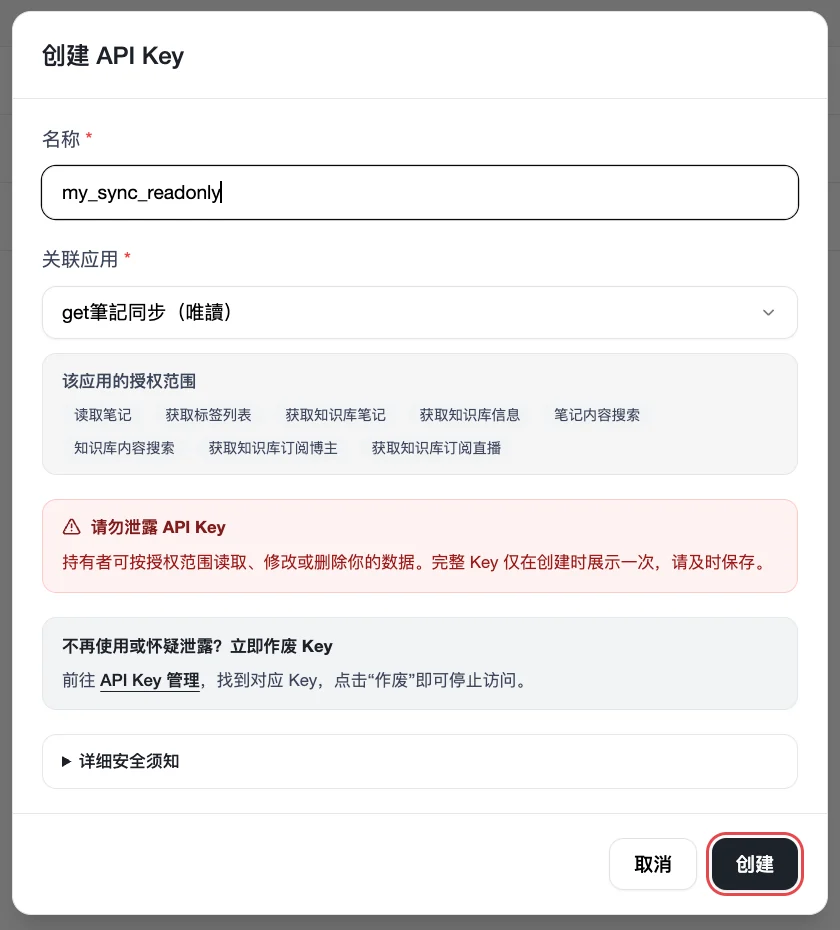
Step 4: Confirm scope and create. Enter a name for the key and verify that “该应用的授权范围” (the authorization scope for this application) lists only read-only items, then click “创建.”
Step 5: Save the key immediately. The next screen shows your API key and Client ID. This is the only time the full key is displayed. Click “一键复制” and save it to a password manager or your .env file. No screenshot here, since this screen contains a live key.
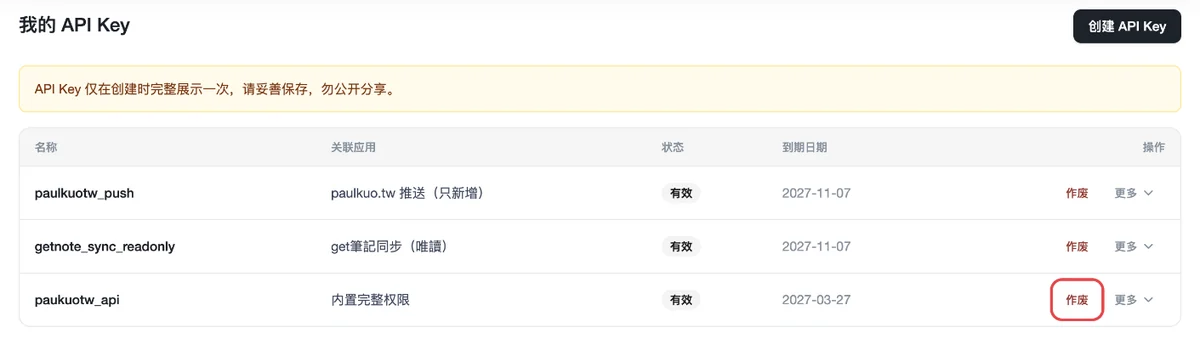
Step 6: Revoke old keys. Once your script is running correctly with the new key, go to the “API Key” page and click “作废” (Revoke) on any keys you no longer need. Revocation is permanent; confirm that nothing is still using a key before you revoke it.
Which Level Is Right for You?
You don’t need to copy my setup. Start from Level 1 and move up only if you need more. If you record only once or twice a month, or if you can’t accept recordings being uploaded to any cloud at all, reviewers have noted that this category of recording card may not be worth the investment (ToolNavs).
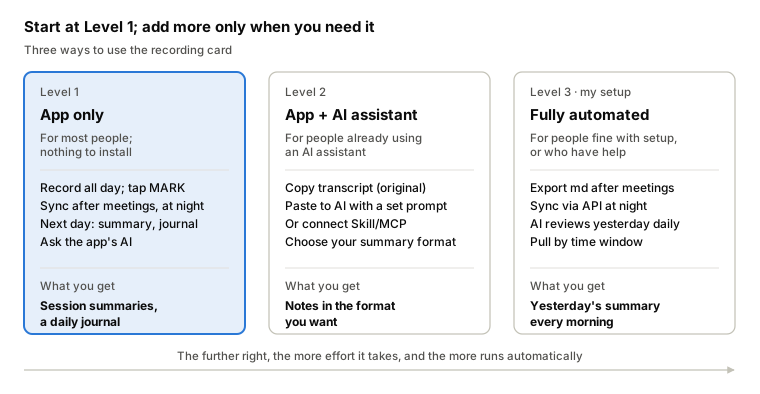
Start at Level 1. Move to Level 2 if you want to use your own summary format. Level 3 is only necessary if you want a summary delivered automatically every morning.
Level 1: App Only
Works for most people. Nothing extra to install.
- Keep the card recording all day. If that feels like too much, record at least during meetings and classes.
- Short-press MARK at key moments. Long-press MARK to speak a quick memo and release to save it.
- After important meetings, sync the card to the app and read the summary for that session. To keep a copy, tap the top-right menu and export as Markdown, PDF, or DOCX.
- When you get home in the evening, sync the rest of the day’s recordings.
- The next morning, read the app’s summaries. For a full-day review, check the daily journal that the AI assistant “Xiaobu” compiled the night before.
- To find something from the past, ask the app’s AI directly. It answers from your own notes.
Level 2: App Plus an AI Assistant
A good fit if you already use ChatGPT, Claude, or a similar tool.
- In any recording note, tap the top-right menu, choose “复制文字记录” (Copy transcript), and select “原文版” (original version), which stays closer to what was actually said. This option has been available since March 2026, alongside an “AI-optimized version” (WOSHIPM). Note the start time for each segment, paste everything into your AI, and use the prompt below.
- Before pasting, check the data settings for the AI service you’re using, for example whether conversations are used for model training. Remove names and other identifying details from sensitive content before pasting.
- If you already use Claude Code, Codex, or similar tools, go to the “AI Agent” page on the open platform and hand the install command to your AI. It will install the official Skill and CLI, and after you authorize, you can query notes and read recording transcripts in a single sentence. If your AI app supports custom connectors, the MCP path works too without any installation. Both options require a Get Notes membership. See the “Three Ways to Connect Your Own AI” section above for details.
Below is a transcript from my recordings. Date: ___. Time window I need: ___ to ___.
Each segment begins with the time it started recording. Add that start time to the
in-transcript timestamp to get the actual clock time.

Please summarize as follows:
1. First line: total number of segments and the overall time span.
2. For each segment: "HH:MM–HH:MM | Topic (with whom)," followed by 3 to 6 key points.
3. The transcript only labels speakers as "Speaker 1," "Speaker 2," etc.
   Infer who each speaker is from forms of address and context; mark any inference as such.
   I am ___; people usually call me ___.
4. If a passage is unclear or fragmented, write it out as-is. Do not fill in the gaps.
5. Close with 2 to 5 follow-up items under "Next Steps."
Level 3: Fully Automated (My Current Setup)
For people comfortable with configuration, or who have someone who can help set it up. I had AI walk me through the whole process step by step.
- Right after important meetings, export a Markdown file from the Get Notes app and save it locally.
- In the evening, sync the full day’s notes from Get Notes via the open API to files on your own computer.
- A scheduled task has AI compile the previous day’s recordings each morning and send a notification to your phone.
- When you need detail, pull the transcript by time window.
- Meeting recordings are organized by project into folders and kept only on your own computer.
What you need: a Get Notes membership, a Client ID and API key from the open platform, a computer that stays on, and an AI tool that supports scheduled tasks. I use the Claude desktop app; when the scheduled task runs, the Mac needs to be awake and Claude needs to be open.
What to Know Before You Start Recording
Taiwanese law. If you are a party to the conversation and your purpose is legitimate, recording is generally not punishable under Article 29 of the Communication Security and Surveillance Act. Recording a private conversation that you are not part of, however, may constitute a criminal offense under the Criminal Code’s provisions on breach of privacy and under the Communication Security and Surveillance Act (Legis-Pedia, 104 Workplace). Do not leave the recording card in a meeting room and walk away. All-day recording also requires extra care around bystanders: private conversations happening within pickup range that you are not part of fall outside the “you are a party” exception. If people nearby are having a private conversation, pause the recording; do not keep or forward anything captured in those moments. I am not a lawyer; individual cases are subject to court interpretation.
Etiquette. Something being legal does not mean the other party is comfortable with it. In formal settings, saying at the start “I’m recording for my own notes” means the other person knows, and referring back to the record later feels natural. For situations covered by a non-disclosure agreement, check what the agreement says first.
Where your data goes. Recording cards in this category process audio and generate transcripts through the vendor’s cloud; content leaves your phone (ToolNavs). Get Notes is the same: audio uploads to the cloud before transcription occurs, and the developer is based in Beijing (App Store). Many companies already prohibit using personal devices of this kind in client or sensitive meetings; check your organization’s policy before buying (same ToolNavs piece). I’ve summarized what the Get Notes privacy policy actually says in the appendix at the end of this article.
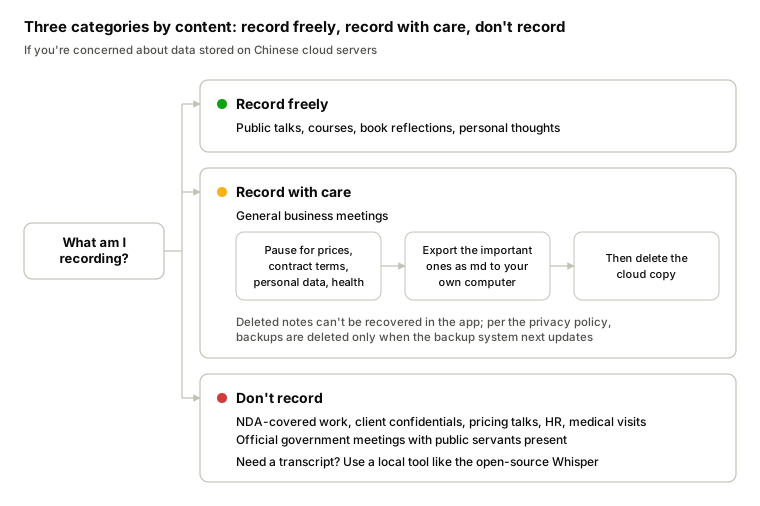
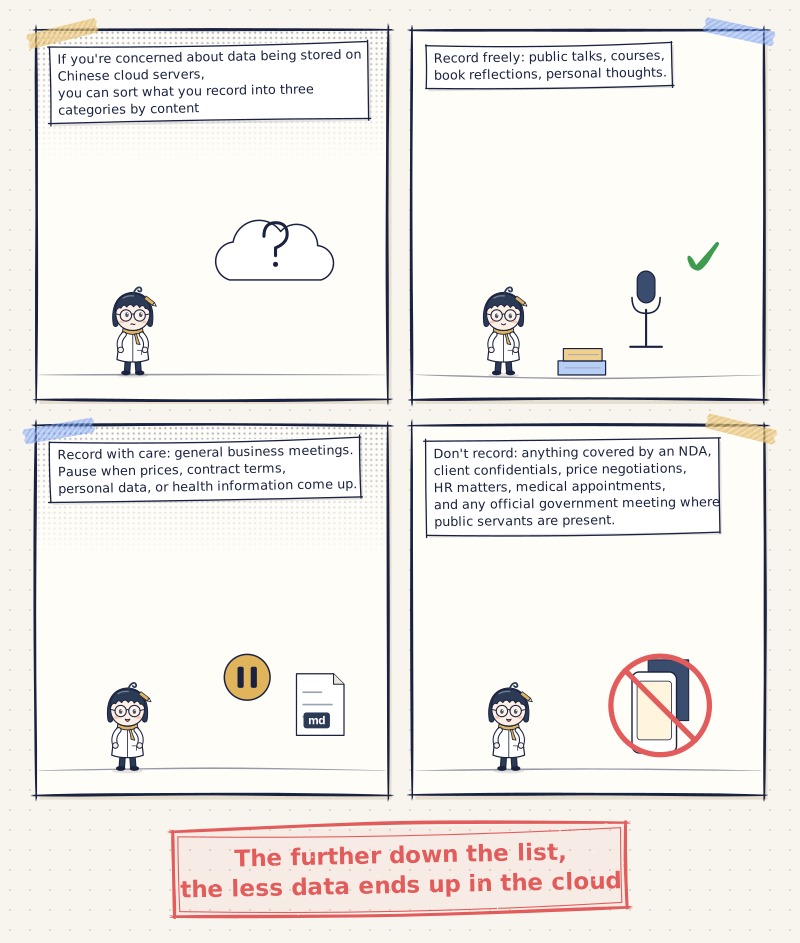
Recording by context. If you’re concerned about data being stored on Chinese cloud servers, you can sort what you record into three categories by content:
- Record freely: public talks, courses, book reflections, personal thoughts.
- Record with care: general business meetings. Pause when prices, contract terms, personal data, or health information come up. Export the important ones as Markdown and save locally, then delete the cloud copy. The app warns that deleted notes cannot be recovered, though the privacy policy notes that backup copies are removed only when the backup system next updates.
- Don’t record: anything covered by an NDA, client confidentials, price negotiations, HR matters, medical appointments, and any official government meeting where public servants are present. If you genuinely need a transcript in those situations, use a local transcription tool such as the open-source Whisper.
The further down the list, the less data ends up in the cloud. The bottom category never touches the cloud at all.
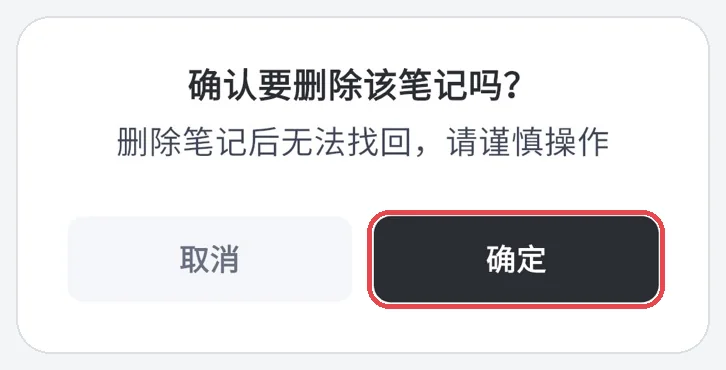
When deleting a note, the app shows a confirmation warning that the action cannot be undone (screenshot excerpt).
Government agencies and public schools are already prohibited by regulation from using software and services from mainland Chinese vendors for official work (Commercial Times). In its 2023 guidelines on generative AI, the Executive Yuan (Taiwan’s cabinet) also bars government staff from giving generative AI any information that must be kept confidential, or any personal data. Closed, on-premises models can be used according to classification level, but only after the system environment has been confirmed secure (Executive Yuan, Business Next).
In July 2025, Taiwan’s National Security Bureau (NSB) spot-checked five Chinese apps: Xiaohongshu, Weibo, Douyin, WeChat, and Baidu Netdisk. All five collected excessive personal data and abused permissions. The NSB also pointed out that under China’s Cybersecurity Law and National Intelligence Law, the government can require companies to hand user data over to state security, public security, and intelligence agencies (NOWnews, Taipei Times). Get Notes wasn’t part of that check, and I couldn’t find any public NSB test of it.
In November 2025, the NSB spot-checked five Chinese generative AI apps as well: DeepSeek, Doubao, ERNIE Bot (Wenxin Yiyan), Qwen (Tongyi Qianwen), and Tencent Yuanbao. All five requested location data, collected screenshots, forced users to accept unreasonable privacy terms, and gathered device parameters, and their generated content was seriously biased and included disinformation (UDN, Taiwan News). Doubao and Qwen are also among the AI services listed in the Get Notes privacy policy (Volcano Engine’s Doubao and Alibaba Cloud’s Qwen), but the NSB tested their own apps, not Get Notes.
What you can share. My rule is based on content, not on the tool. Anything recorded in a meeting or conversation stays private. Public live streams or talks recorded through the card can be shared after I write them up in my own words. In May, for example, I recorded a defense AI talk at a Claude Taipei event, had the app’s AI and Claude help me organize my notes, and posted them publicly on Facebook (Facebook post).
Quota and cost. The free tier’s 600 minutes per month is roughly 10 hours. All-day recording burns through that in a day or two, so continuous recording effectively requires a paid membership. Reviewers also point out that this category of product involves a one-time hardware purchase alongside ongoing subscription fees for the AI features; if you cancel the subscription, you lose most of the core functionality (same ToolNavs piece).
Record First, Decide What Matters Later
Record all day and “should I record this?” stops being a decision you make in the moment. Important meetings get handled immediately. Everything else goes into the evening pass.
If you want to try this, start at Level 1. Tomorrow, keep the card on all day. After any important meeting, sync and read the summary for that session. In the evening, sync the rest of the day. The next morning, read the full summary. Do that for a week and you’ll know whether you need to go further. If you do, try the Skill or MCP integration on the open platform first. Add API and scheduling only if you find you need automation.
This article sits under the Human-Machine Collaboration section of Intelligence & Order.
Appendix: What the Get Notes Privacy Policy Actually Says
The Get Notes privacy policy states that personal data is stored inside China and that AI features are processed by three Chinese vendors. The table below is based on my reading of the original privacy policy on November 7, 2026. The version I read was published May 20, 2026 and took effect May 27, 2026.
You can also read the full policy on your phone: in the Get Notes app, go to “关于我们” (About) and tap “隐私政策” (Privacy Policy).
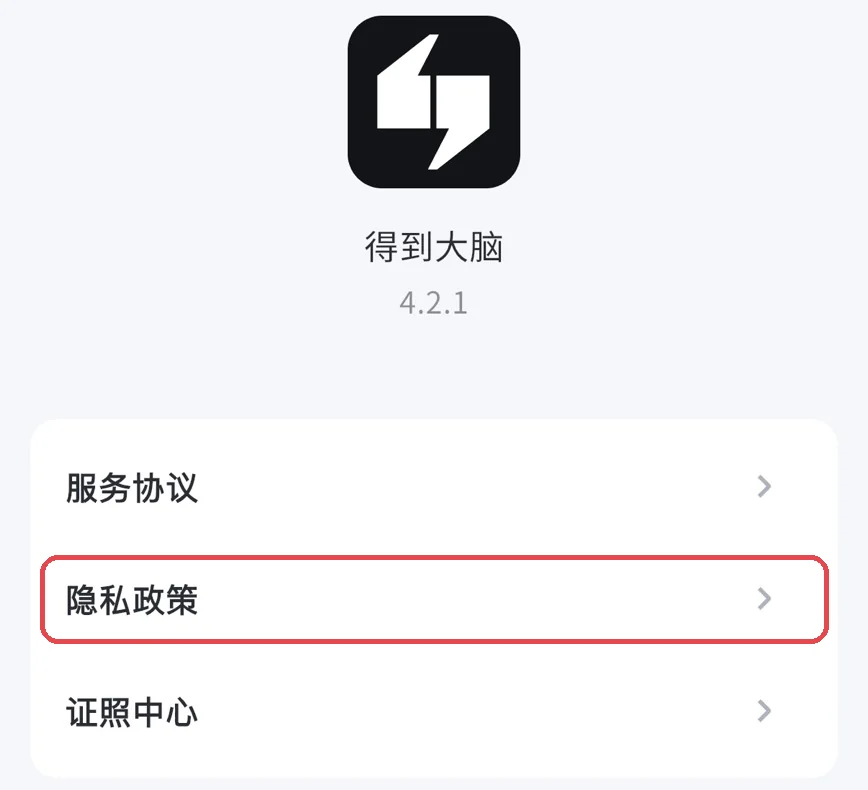
The “About” page in the Get Notes app (screenshot excerpt, app version 4.2.1).
| Item | What the policy says |
|---|---|
| Where data is stored | Personal data collected and generated during operations in China is stored inside China. It is not transferred abroad unless required by law or with your explicit consent. |
| What is collected | Text, images, and voice you input, used for syncing, organizing, and searching notes. |
| AI features | Volcano Engine (Doubao), Alibaba Cloud (Tongyi Qianwen), and Zhipu (GLM) process text you input and images you upload. |
| Speech-to-text | Tencent Cloud real-time speech recognition is listed. The recording card is not mentioned anywhere in the policy, so it is unclear which service processes audio from the card. |
| Third-party sharing | Personal data within uploaded content is not shared with other companies without your consent. Anonymized or de-identified information may be shared with partners to improve the service. |
| Situations where consent is not required | Collection, use, and disclosure do not require your consent when related to national security, national defense, public safety, criminal investigation, or judicial proceedings. |
| Use for model training | Not mentioned anywhere in the policy. |
| Voice prints | Not mentioned anywhere in the policy. The sensitive personal data category lists information specific to certain identities and data about individuals under age 14; biometric identifiers are not listed. |
| Phone permissions | Location, camera, microphone, and photo library are off by default and require your explicit authorization. The clipboard is read on-device and is not uploaded. |
| WeChat login and sharing | Uses Tencent’s SDK, which collects device identifiers including the MAC address. |
| Deletion | Data you delete is removed from backup systems only when those systems next update. |
| Account cancellation | Requires contacting customer support. After review and approval, data is deleted or anonymized. This cannot be reversed after cancellation. |
| Personalized recommendations | Can be turned off at “我的 → 设置 → 隐私设置” (Me → Settings → Privacy Settings) (the path given in the policy; as of app version 4.2.1, this option does not appear in the Settings page). |
A note on the app’s Settings page as of November 2026: “自动读取剪切板链接” (auto-read clipboard links) has a toggle you can disable. “本地录音与音频” (local recordings and audio) shows that recordings, including files from the recording card, are also kept on your phone. Tapping “整理” (Clean up) removes the local copies; any recordings not yet synced will be permanently deleted along with them, though already-synced cloud copies are unaffected. “注销账号” (Delete account) is at the bottom.
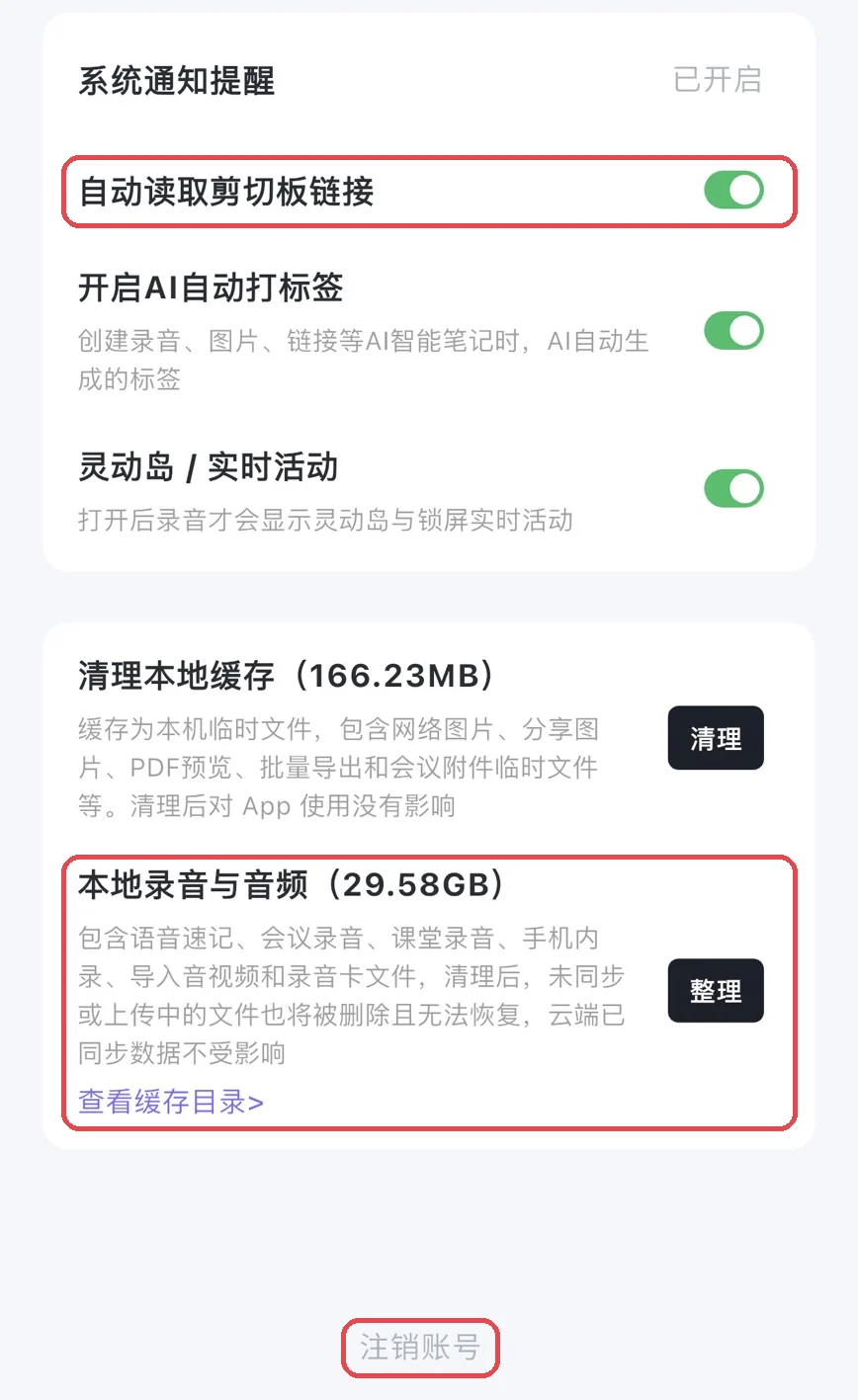
The lower half of the Get Notes app Settings page (screenshot excerpt).
Policy terms change; always refer to the latest official version. Items listed as “not mentioned anywhere in the policy” are things I could not find in the source text.
References
- Sspai, Yushu Zhilan: Why Get Notes is Back in My Knowledge Workflow (2026-03-25)
- WOSHIPM, AI Planet: Get Notes Review: What Makes This AI Note Tool Stand Out? (2026-03-24)
- WOSHIPM, Hengheng: WeChat Releases Its First AI Hardware: Three Thoughts (2026-07-11)
- ToolNavs: Is an AI Recording Card Worth Buying? (2026-10-04)
- Get Notes documentation: Dedao AI Recording Card (GetSeed AI Recording Card)
- AI Tool Directory: What Is the GetSeed AI Recording Card (2026-01-02)
- 得到大脑 (formerly Get Notes) App Store page and version history
- Myapp: Get Notes App Listing
- Get Notes Open Platform: Quick Start, MCP Integration, Quota Details, and AI Agent Page
- Get Notes CLI @getnote/cli Documentation (pkg.go.dev)
- Get Notes Official Skill Documentation (via termo.ai)
- Obsidian plugin: GetBiji
- Legis-Pedia: Legal Q&A on Whether Recording Violates the Law (2020-09-02)
- 104 Workplace, Attorney Su Hongwen: Legal Analysis of Covert Workplace Recording (2019-12-04)

💬 Comments
Loading...