
TL;DR: Project discussions were scattered across several LINE groups, and manual exports were easy to miss and forget. I built a note-taking bot: it sends one self-introduction when it joins a group, then stays silent, only receiving, never replying. The cloud acts as a relay only. A local script pulls messages and attachments on a schedule, writes them into plain-text files in the same format as a manual export, and places them in the project folder. Four design priorities: the local machine is the only long-term copy, writes are verified before the cloud is told to delete, messages are received before being classified, and a heartbeat distinguishes “quiet group” from “bot is broken.” The limitations are worth stating upfront: the bot cannot enter one-on-one conversations, it cannot retrieve history from before it joined, and it stores full text with attachments, not summaries. One more honest note: I hit a case where the folder was inside a cloud-synced location, writes kept failing persistently, and the details are in the final section.
Project discussions live in LINE groups. How do you hold onto them?
I’m in several project groups at once. Decisions, action items, files the other party sends: most of it happens inside LINE.
LINE has a manual export feature that saves a conversation as a text file. But someone has to remember to run it each time, and then confirm that every group’s records are actually up to date. When work gets busy, it’s easy to skip one group or miss a stretch of time. Later, when you need to find a single sentence from that period, you end up scrolling back through LINE trying to locate it.
What I wanted was simple: each group’s conversation automatically becomes a text file in its project folder, formatted the same way as a manual export, so old files and new files can be read as one continuous record.
The approach in one sentence, plus a diagram
One sentence: a LINE Official Account acts as the receiver. After its opening self-introduction, it stays silent in the group, only receiving, never speaking. Messages and attachments pass through a cloud relay where they’re held temporarily, then a script on my computer pulls them on a schedule and writes them into the project folder.
There is one exception when it will respond: if I use LINE’s “Share chat history” feature in a one-on-one conversation to send it a log, it replies with a receipt. It does not answer questions. It does not chat.

flowchart LR
  A["LINE Group"] --> B["Official Account webhook"]
  B -->|"Verify signature, store, return 200"| C["Cloud relay (temporary storage)"]
  C -->|"Scheduled pull"| D["Local sync script"]
  D --> E["Project folder: LINE Records/GroupName.txt"]
  D -->|"Notify deletion only after verified write"| C
A few terms worth clarifying. A webhook is LINE’s mechanism for pushing every group event in real time to a URL you specify. LINE’s official documentation requires that you verify the signature before processing any event. That documentation is here. On the cloud side, I have a small function, a temporary-storage database, object storage for attachments, and a cache that maps group names. On the local side, a sync script written with only Python’s standard library, set to run every three hours.
In this architecture, the cloud is not the file store. It’s a transit point. The file store is the folder on my computer.
If you want to build this yourself, where do you start?
For the LINE side, I’d suggest reading the official documentation in this order. The section headings below are from the official English docs. Refer to the actual documentation for current UI labels and field names.
| What you want to accomplish | Official documentation and what to focus on |
|---|---|
| Create an official account and enable message receiving | Get started with the Messaging API: Create a LINE Official Account, enable the Messaging API from Official Account Manager, then manage the channel from the Developers Console. |
| Set up credentials and configure and test the webhook | Build a bot: Covers the channel access token, HTTPS webhook URL, Verify, and Use webhook settings, along with welcome messages and auto-reply configuration. If your only goal is logging, pay close attention to those reply settings. |
| Add the bot to a group | Group chats and multi-person chats: Explains the “Allow bot to join group chats” toggle and how group events are delivered to the bot. |
| Confirm that received events actually come from LINE | Verify webhook signature: Explains signature verification using the channel secret. The request body must not be modified or reassembled before verification. |
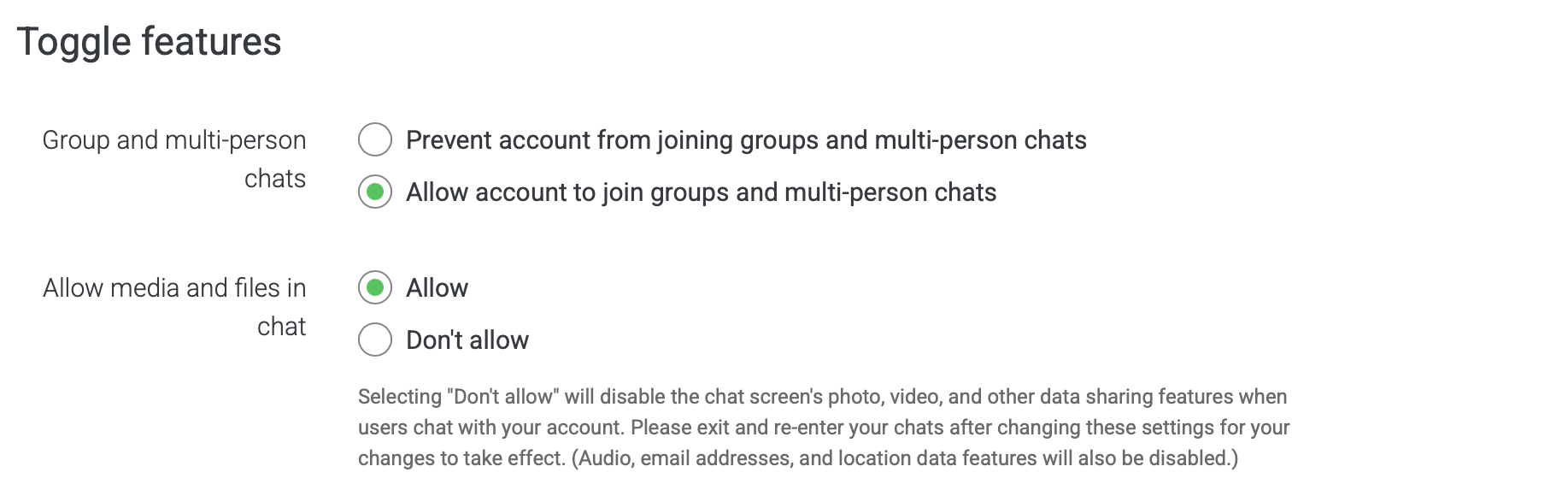
The documentation above covers LINE platform configuration. Building the logging workflow described in this post still requires writing your own receive-and-sync scripts.
For cloud and local setup, here are general recommendations. My own actual state and unresolved issues are noted at the end of the article.
On the cloud side, separate the three jobs: receive, hold temporarily, and sync. If you’re using Cloudflare, start with the Workers getting started guide for deployment, then use D1 for temporary message storage and R2 for attachments. Test in an isolated project first, with permissions scoped to only what that project needs. The webhook receiving LINE events must be reachable by LINE and must verify signatures before processing. The sync endpoint that lets the local script pull data and confirm writes needs its own authentication. An obscure URL is not a substitute for either.
Credentials and attachments each need their own storage approach. Keep LINE’s channel secret, access token, and local sync credentials separate. Store sensitive cloud values in Workers Secrets rather than hardcoding them in source or config files. On the local side, keep only the credentials needed for sync, and restrict which accounts can read them. Keep attachment storage private and avoid enabling public access. The R2 public bucket documentation lists which settings expose content to the internet. Align the retention and deletion rules for messages and attachments so one side isn’t cleared while the other is still waiting to sync.
Run the local script manually end-to-end before handing it to a scheduler. Pick an ordinary folder that isn’t cloud-synced and isn’t tracked by version control as the write destination. Confirm the account running the script has read and write access. When you set up scheduled execution, write sync and confirmation failures to a log you can actually check. Backups need to be set up separately, restricted in access, and encrypted, and you should test restoring from them. Moving the folder out of cloud sync only fixes the write location problem; it doesn’t produce a backup on its own.
Testing should go all the way to a file actually landing on disk. Send a text message and a test attachment with no personal information in a test group. Confirm the cloud receives them, the local script writes them successfully, and the content matches. Then test duplicate events, temporary write failures, re-runs, and confirmation failures, and check whether anything gets lost, duplicated, or cleared from the cloud too early. Check local write results and cloud receipt status separately. A passing webhook test or a normal heartbeat is not sufficient.
If you publish setup notes publicly, replace all URLs, account identifiers, group names, and storage resource names with placeholder values, and use screenshots from a test environment. Don’t include real credentials, full config files, or logs with actual conversation content. Readers need to understand how to configure and verify the system, not a copy of your deployment.
How do you explain this bot to the people in the group?
Let me state the principle first, then describe what I actually did.
When the bot joins a group, it automatically sends one message. I made that one message deliberately minimal:
I’m Paul’s note-taking assistant, responsible for summarizing work activities. I do not participate in conversations.
A few minutes after adding it to one group, I followed up with a line of my own in Chinese:
這是幫我做工作紀錄的AI只會記錄不會發文。各位請放心。
(Roughly: “This is an AI for my own work records. It only logs, it never posts. Don’t worry.”)
One member replied “好強大” (something like “impressive”) and then tagged the bot directly, asking in English how it could help organize information, connect ideas, and turn insights into actionable outcomes. He also asked me, “Will it respond?” I answered: “有下了咒術禁制。所以不會回答。” Roughly: “It’s under a binding spell. So no, it won’t answer.” Meaning: it’s here to log, not to reply.
That said, the word “summarizing” in my introduction can give the impression that only summaries are kept. The phrase “work records” doesn’t fully describe what’s actually saved either. What the bot actually stores is the full text of conversations, plus attachments sent in the group. Producing a work report from those records is a separate step. That’s where the saved files get handed to an AI for processing. The joining message establishes the bot’s purpose and role, but where the records are stored, who can read them, how long they’re kept, and what happens when an AI processes them still need to be communicated to group members separately.
There is no way to edit or retract a message already sent by an official account. The Messaging API reference lists only send and statistics endpoints for messages. There is no endpoint for modifying or retracting a message that has already gone out. The unsend event in the docs notifies the bot when a user retracts their own message; it is not a mechanism for the bot to retract its own (API reference). The wording of that automatic introduction must be finalized before the bot enters any group for the first time.
LINE’s developer user data policy has its own requirements governing how this kind of data is handled. The policy is here. This post does not draw conclusions about compliance or endorse any particular approach. If you’re building this, read the policy yourself before deciding how to inform your group members.
Four design decisions and the reasoning behind each
One: the cloud is only a relay; the local machine is the sole long-term copy. I didn’t want another complete copy of group conversations sitting in the cloud indefinitely. The cost of this choice is that backup becomes my own responsibility. If the folder is damaged, there is no second copy. I accepted that tradeoff at design time, which means the folder gets treated like any other thing I’d want to back up.
Two: fixed write order; failed batches stay in the cloud. The script always follows this sequence: pull from cloud (read-only), write files, verify writes, update the local record of written IDs, then notify the cloud to delete. Pull and deletion notification are two separate requests. If anything in that sequence fails, the cloud batch is not deleted. It gets pulled again next round. The local script also maintains a list of already-written message IDs to block duplicates. The principle: prefer duplication over loss. This is designed behavior, not a guarantee of results, which is precisely why the backup in the first point matters.
Three: receive first, classify later. Messages from unregistered groups go into _unclassified first. Routing gets configured afterward: map group IDs to projects, or map filename fragments to projects. This way a new group can start receiving messages before anyone sets up its configuration. Forgetting to configure it doesn’t lose messages, it just means files sit in _unclassified for a while. Output filenames are derived from the group name. If the group name in the bot differs from the name used during a manual export, the same conversation ends up in two separate files. When that happens, merge them. Don’t let them coexist.
Four: use a heartbeat to distinguish “no one is talking” from “the bot is broken.” If the bot is removed from a group or its credentials expire, the view from outside is just silence: the group looks quiet. So every run, the script reports how many hours have passed since the last recorded event, and issues a warning if no event has arrived from any source in more than three days. It also lists join and leave events from the past seven days, along with the count of messages pending sync. LINE doesn’t tell you who removed the bot from the group. That’s something to be prepared for. One important caveat about what the heartbeat actually measures: it measures whether the cloud is receiving events. It cannot see whether the local script is successfully writing files. Write failures on the local side only appear in the sync log. Someone has to read that log. This is the same problem I wrote about in the monitoring script that failed silently: no events should be distinguishable from not being able to see events.
Five counterintuitive traps
One: the account name needs to be legible to people across languages. My first account had a name in Chinese only. When it joined a group with collaborators who don’t read Chinese, they had no idea what it was. I later created a new account. My current recommendation: use an English name, or English and Chinese together, so the purpose is immediately clear. Renaming rules vary by account type. Per LINE Taiwan’s official guidance, an unverified general account can be renamed by the account holder, but cannot be renamed again for seven days after a change. A verified account requires submitting a name change request to LINE’s review team.
Two: pasting a secret with echo will give you a baffling 401. echo appends a trailing newline, which becomes an illegal character in an HTTP header, and all you see is an authentication failure. I spent a long time debugging that. Use interactive input or printf %s to pass the value instead.
Three: 403 and 401 are different problems. Requests without a custom User-Agent header can be blocked at the cloud platform layer, by bot-detection rules, before they ever reach your function. Your function only returns 401. So when you see a 403, suspect the platform layer first, not the secret. The sync script handles this already.
Four: putting the log file on the desktop breaks background scheduling. I hit this one: the scheduled task’s log file was on the desktop, and a permission flag prevented the scheduler from starting at all. Put logs under ~/Library/Logs/, not on the desktop or anywhere inside a cloud-synced folder.
Five: only one LINE Official Account can be in a group at a time. This is a platform limitation, not something I encountered personally. The official documentation states: “At any time, only one LINE Official Account can be in a group chat or multi-person chat” (Group chats and multi-person chats). The documentation doesn’t cover the specifics: whether your bot is blocked from joining when another official account is already present, or gets removed after joining, and whether any notification is given. I haven’t tested it. Check the member list before sending an invite.
How the saved records get used: the weekly work report
I hold a position at a nonprofit organization and need to submit a weekly work report. The primary source for progress updates and action items is the records from various LINE groups. The folder the note-taking bot writes to is the raw material for that report.
The rough flow: each week, I have an AI read the entire LINE Records folder. The AI scans the whole folder rather than a hardcoded list of group names, so newly added groups are automatically included. The AI produces a draft: a Markdown version, a PDF version, and a message ready to post back to the group. I review the draft before sending it. That’s a rule I set for myself.
Before handing the records to the AI, I now follow two disciplines I learned the hard way.
First: check the update status of each exported file. Before pulling any content, look at the file’s last-modified time, then look at the date of the last message inside the file. If the record stops several days before the report period ends, mark that range as unconfirmed and cross-check the sync log or the original conversation in LINE. The group may genuinely have gone quiet, or the export or sync may have fallen behind. Until you know which, don’t let the AI describe that gap as “no progress.”
Second: a blank dashboard is not the same as no progress. Trust the local files. In one instance, my draft was generated from the online dashboard alone, and it said “no new deliverables in this period.” But the local folder had a significant amount of activity during that same time. A dashboard reflects whatever someone remembered to fill in. The files reflect what actually happened.
One small trap worth mentioning: if the folder is inside a cloud-synced location, files may exist only as placeholders that haven’t been downloaded yet. Attempting to read them fails with Resource deadlock avoided. Run brctl download to pull the files locally before reading. This same condition is what caused the bot’s write failures in my case. Details are in the next section.
What it can’t do, and when not to use it
Platform limitations first. These have no workarounds:
- It cannot enter a one-on-one conversation between two real users. Records from those conversations can only reach the bot if I forward them using LINE’s “Share chat history” feature. The bot downloads only
.txtfiles I share this way. If the incoming file is smaller than the existing file on disk, the script does not overwrite it. It saves a.incoming.txtalongside it for me to compare manually. - It cannot retrieve history from before it joined. Do a manual export before adding the bot, and treat that as the baseline.
- When a member hasn’t consented to share their profile, their name appears as “Unknown member (xxxxxxxx).” This is expected behavior, not a bug. Don’t try to guess who it is.
- Files shared on LINE have an expiration period.
Design limitations: the local machine is the sole long-term copy. Without a backup habit, this architecture puts all the risk on you personally. If the folder is inside a cloud-synced location and files are placeholder stubs, writes will fail. The script’s behavior in that case is to skip the cloud notification and retry next round. It does not attempt to recover immediately.
This is a trap I hit myself, and only fixed on October 2. Below is what I found when I reviewed the local sync log and folder before the fix. The fix and its outcome follow at the end.
- Failures started appearing on August 20, and became markedly more frequent from August 27 onward. The error in the log was
Resource deadlock avoided. I measured by counting how many files failed to write per run, since the number of runs per day varied (between 2 and 12). From August 20 to 26, roughly 0.3 to 3 files failed per run on average. From August 27 onward, most runs showed 4 to 13 failures. October 1 was 13; October 2 was 12. The single exception was September 13: 7 runs that day, zero failures. - My assessment is that the desktop was being synced to the cloud. My project folder was on the desktop, and desktop sync was enabled. The 12 files that failed to write in the October 2 run were all placeholder stubs that hadn’t been downloaded locally. Of the 33 text files under
LINE Records, 22 were placeholders. The failures weren’t limited to_unclassified. Files in the project subfolders were affected too. - It was partial failure, not a complete stop. On September 28, 8 runs completed, and 5 of them successfully wrote records. But in the 11:20 AM run on October 2, 687 messages were pulled from the cloud, all 12 target files failed to write, and 0 messages were committed. In the runs I checked across October 1 and 2, each run pulled several hundred messages, all flagged as new, consistent with the same batch sitting unacknowledged in the cloud across rounds.
- The heartbeat showed normal throughout. I reviewed all log entries from August 19 through October 2: 258 heartbeat lines, not one showing anything other than normal. The heartbeat measures whether the cloud is receiving events. The cloud kept receiving them, so the heartbeat stayed normal. Local write failures only appear in the sync log.
As for whether any messages were actually lost, my assessment has two layers. Per the Worker code, cloud-stored data is only deleted after the local machine confirms a successful write, and I don’t see any expiration-based deletion logic. So by design, those messages should still be in the cloud. But I haven’t verified whether the attachment storage has a separately configured lifecycle policy, and I haven’t done a message-by-message audit. I can say the design intends no loss. I cannot say there was no loss.
The fix: I moved both record folders (group text records and group attachments) out of the cloud-synced desktop into an ordinary folder with no sync and no version control. The only change to the script was one path setting. Before moving anything, I copied all 572 files one by one and verified that each file’s size matched, then switched the path. I ran a sync immediately after: 722 messages pulled from the cloud, all written successfully, including 89 attachments, 0 write failures, 722 entries acknowledged and cleared from the cloud. The run immediately after that pulled nothing new. This confirms the backlog was written to disk. It does not confirm no loss occurred: whether any messages expired before being written during the weeks preceding the fix, I have not verified message by message.
As of October 3, 2026, two things remain unresolved: the new folder location has no backup arrangement yet, and the heartbeat still only measures cloud receipt, so local write failures still require checking the sync log. The two scheduled runs on October 3 at 02:46 and 05:51 showed no sync errors, but both ran with no new messages, so this only confirms the scheduler is running. It does not confirm that writes will continue normally when new messages arrive. The attachment storage lifecycle policy also remains unverified, which is why I’m not ready to call this fix “confirmed no data loss.”
Finally, on when not to use this. These are my judgments, not conclusions from formal testing: if you cannot clearly explain to group members what is being stored, where it’s stored, who can read it, and how long it’s kept, the bot should not be in that group. If what you need is a shared, real-time, full-text-searchable team knowledge base, a plain-text file on a personal laptop is not the right shape.
Code is not public. Reach out if you want to discuss it. More solo-operator implementation notes are on the Startup & Practice topic page.

💬 Comments
Loading...